Go LIVE on TikTok
HypeMyStream connects to your TikTok LIVE straight from your computer. There is no HypeMyStream server in between and no account to log in to. It only needs your TikTok username, and optionally your own Euler Stream sign key.
- Before you start
- Get an Euler Stream sign key (recommended)
- Connect
- Try it without TikTok: offline simulation
- When connecting fails
- What leaves your computer
- For developers
Before you start
- Your TikTok username is set. It is shown in the top bar as
@your_name. Click it to change it. Use your @username (the part after the @ on your TikTok profile, 2 to 24 letters, numbers,_or.), not your display name. While you are LIVE it is locked: Locked while you’re LIVE. End LIVE to change it. - A game is picked for LIVE (shown next to your username, with Switch). You can also go LIVE without one; then gifts only set off your stream extras such as sounds, jumpscares and overlays.
- Your LIVE has started on TikTok, in the TikTok app or in TikTok LIVE Studio. HypeMyStream joins a LIVE that is already running; it can’t start one for you.
Get an Euler Stream sign key (recommended)
TikTok only accepts a LIVE connection that has been signed. HypeMyStream uses the free
Euler Stream sign server for that (through the open-source
tiktok-live-connector library).
Without a key, you share Euler Stream’s free limits with everyone else who has no key, and those are often busy. With your own free key you get your own limits, and connecting is much more reliable.
- Go to eulerstream.com, create a free account and create an API key in your account.
- In HypeMyStream, click the round avatar at the top right (Account), then Settings.
- Scroll to the TikTok LIVE group (marked This PC).
- Paste the key into the field Paste your API key under Euler Stream sign key.
- Click Save.
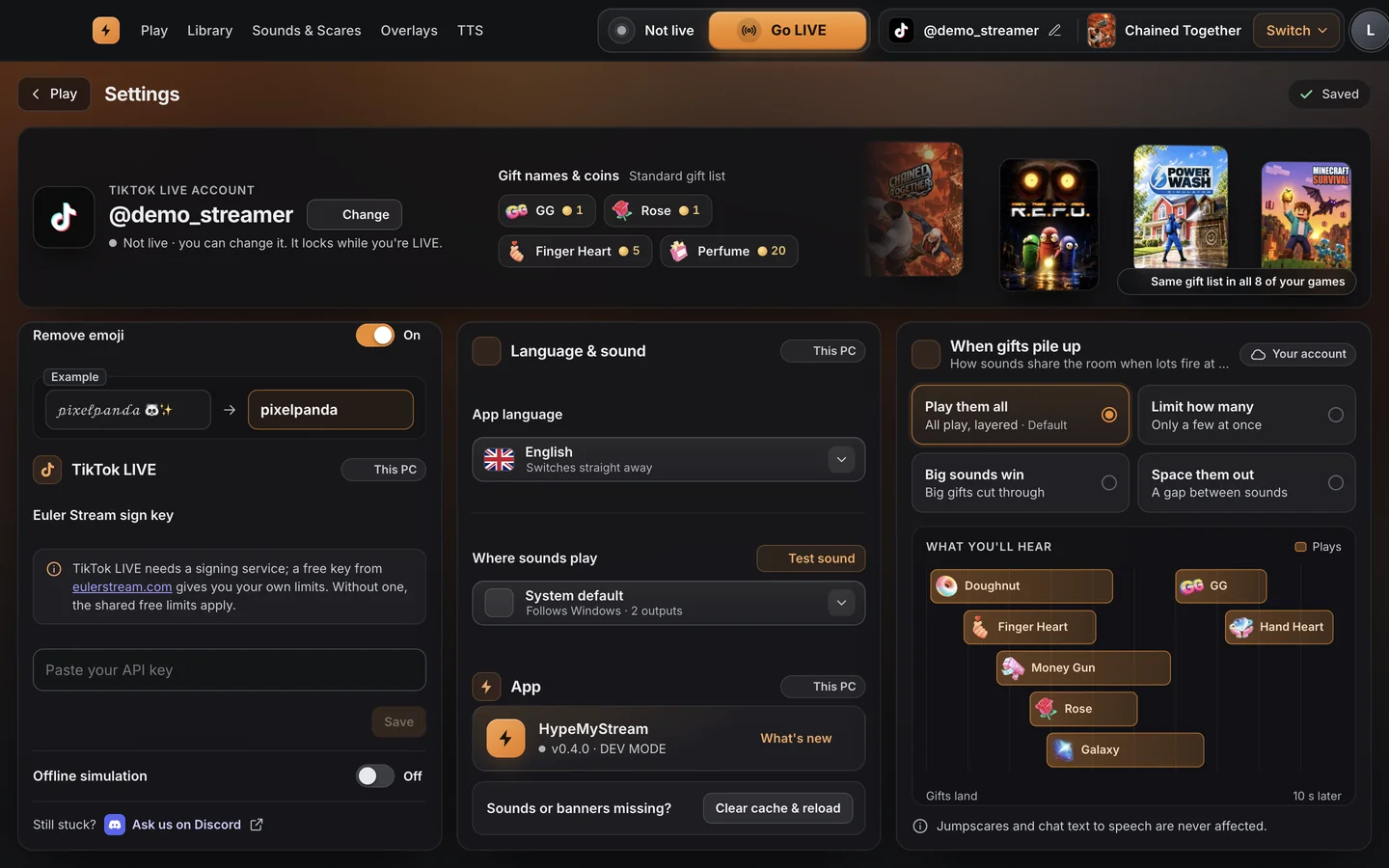
Once a key is saved, the field reads Paste a new key to replace it and a Remove key button appears. Paste a new key and click Save to replace it, or click Remove key to go back to the shared limits.
Good to know:
- The key is used the next time you click Go LIVE. If you change it while LIVE, end your LIVE and go LIVE again.
- The key is saved only on this computer, in
local-settings.jsonin the app’s data folder. It is never sent anywhere except to Euler Stream. The app window is only ever shown the key’s last four characters. - A key with spaces in it, or one longer than 512 characters, is refused with That doesn’t look like an Euler Stream API key.
- If no key is saved, the app uses the
SIGN_API_KEYenvironment variable when it is set.
Connect
- Start your LIVE on TikTok.
- In HypeMyStream, click Go LIVE in the top bar.
- The top bar shows Finding your LIVE · On TikTok as @your_name while it connects. This can take a few seconds; after 45 seconds it gives up with a time-out error.
- When it is connected, the top bar shows LIVE, a timer, your diamonds for this stream (on wide windows) and End LIVE.
From now on, gifts, likes, follows, shares and chat reach your game and your stream extras. The Play page shows Diamonds this stream, Likes, New followers, Shares, Events fired, your Top gifters and the Live activity feed. The game’s page shows the same numbers in its own Live activity column.
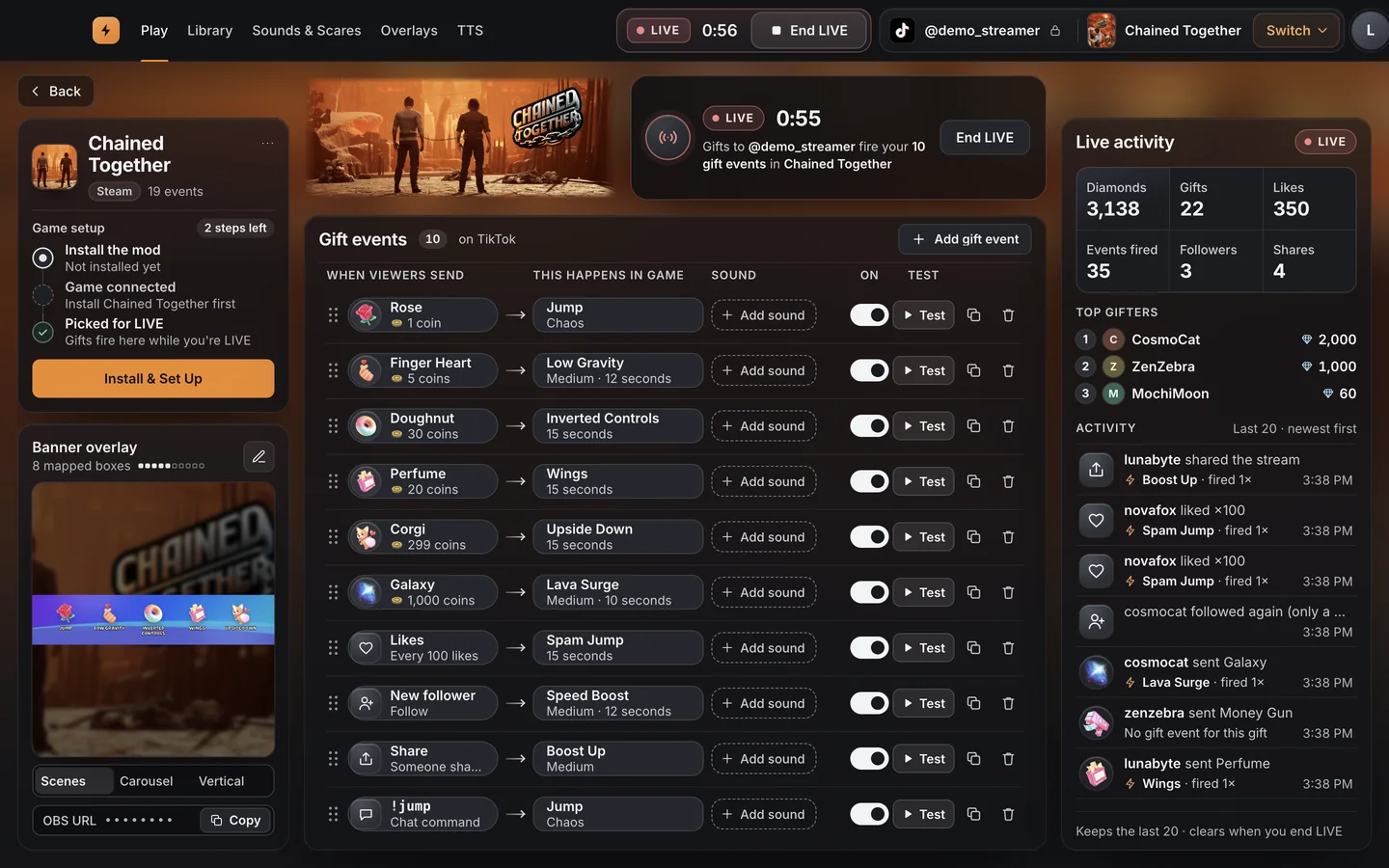
To stop, click End LIVE. There is no confirmation. The stream totals start from zero on your next LIVE.
What happens on the way
- Chat from before you connected is not replayed. TikTok sends a backlog of recent messages when a connection opens; the app drops it, so old commands don’t fire and text to speech doesn’t read old messages again.
- If the connection drops, the top bar shows Reconnecting… · Your LIVE is still going, and your gift events stay on. The app retries up to 8 times, waiting a little longer each time (3 to 30 seconds), for up to 3 minutes. If that fails, it stops with Connection lost after … reconnect attempts and you can click Go LIVE again.
- If you end your LIVE on TikTok, HypeMyStream ends its LIVE too.
- Switching games mid-stream does not disconnect: use Switch in the top bar. The app confirms with Switched. Your LIVE is still going.
Try it without TikTok: offline simulation
The offline simulation lets you go LIVE inside the app without being live on TikTok, and without any internet connection to TikTok. Use it to test your setup.
- Click Account (the round avatar at the top right), then Settings.
-
In the TikTok LIVE group, switch Offline simulation on.
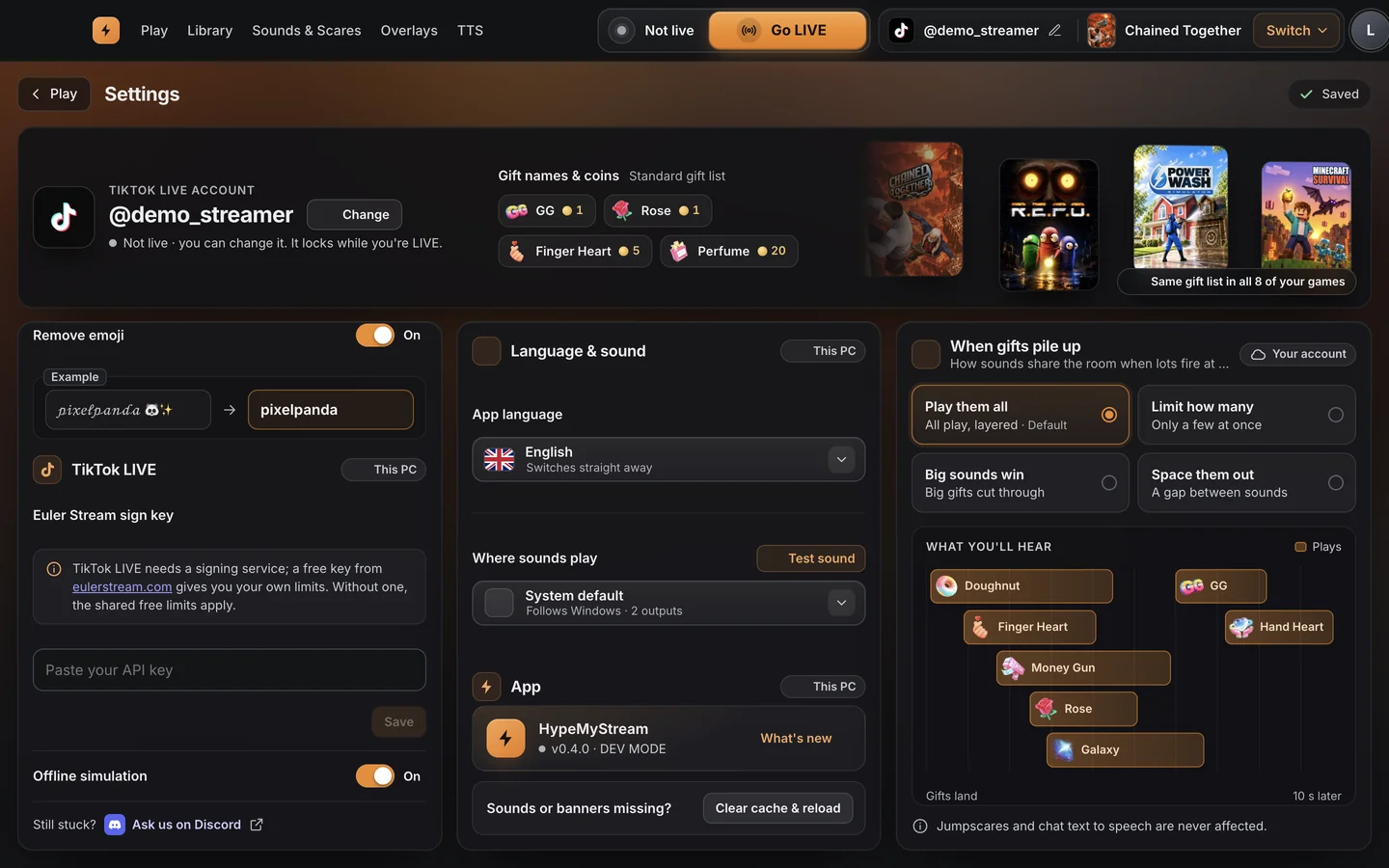
- Click Go LIVE in the top bar. It connects at once and the top bar shows LIVE. Your TikTok username still has to be set.
- Fire events by hand:
- on a game’s page, Test on any gift event;
- in Sounds & Scares, the play and test buttons;
- on the Lucky Wheel page, Test play;
- on the Mute Wheel page, Test mute spin and the other test buttons.
- Click End LIVE when you are done.
While the simulation is on, Go LIVE never connects to TikTok, and no real viewer events arrive. Switch it off before a real stream.
The app has no button that sends fake viewers’ gifts, likes or chat. Test fires your game event directly; it does not pretend a viewer sent the gift. To send full simulated viewer events, see For developers below.
Starting the app with the environment variable HMS_LIVE_SIMULATION=1 forces the simulation on. The switch then
stays on until you start the app without it.
When connecting fails
If Go LIVE doesn’t connect, the top bar shows an error and says why. For a wrong username it shows Can’t find @your_name · Check the username is right with a Fix username button. For everything else it shows Couldn’t connect with the reason below it, and a Try again button.
These are the reasons the app gives, and what to do:
| The app says | What it means | What to do |
|---|---|---|
| @your_name isn’t LIVE on TikTok right now. Start your LIVE first, then connect. | TikTok says this account has no LIVE running. | Start your LIVE in TikTok, wait a few seconds, then click Try again. |
| Couldn’t find a TikTok LIVE for @your_name. Check your username and that you’re LIVE, then try again. | TikTok returned no LIVE room for that name. | Check the username in the top bar, and that you are LIVE on that account. |
| Invalid TikTok username (shown as Can’t find @your_name) | The username is not a valid TikTok handle. | Click Fix username and enter the part after the @ on your profile. |
| The free TikTok signing service is busy right now (rate limited). Try again later, or add your own free sign key: … | You have no sign key, and the shared free limits are used up. | Wait and try again, or add your own sign key. |
| Your Euler Stream sign key reached its rate limit. Try again in a few minutes. | Your own key’s limit is used up. Every connect and reconnect asks the sign server again. | Wait a few minutes. Avoid many Go LIVE / End LIVE cycles in a row. |
| Euler Stream did not accept your sign key. Add or check your Euler Stream sign key in Settings → TikTok LIVE. | The key is wrong, expired or was deleted. | Copy the key again from your Euler Stream account, paste it and click Save. |
| The TikTok signing service (Euler Stream) refused this connection: … Add or check your Euler Stream sign key in Settings → TikTok LIVE. | Euler Stream needs a permission your key (or the free shared access) doesn’t have. The reason after the colon is Euler Stream’s own text. | Read Euler Stream’s reason. Check your key and your Euler Stream plan. |
| The TikTok signing service (Euler Stream) refused the connection: … Add or check your Euler Stream sign key in Settings → TikTok LIVE. | The sign server returned an error. The reason after the colon is Euler Stream’s own text. | Try again in a moment. If it keeps happening, check your key. |
| Temporarily blocked by TikTok — try again later | TikTok asked for a captcha or blocked the request. | Wait a while before you try again. |
| Connecting to TikTok timed out. Check your internet connection and try again. | No answer within 45 seconds. | Check your internet connection, then Try again. |
| Couldn’t reach TikTok. Check your internet connection and try again. | The computer could not reach TikTok at all (no network, DNS or firewall). | Check your internet connection, VPN and firewall. |
| TikTok refused the connection: … | Any other error from TikTok. The reason after the colon is TikTok’s. | Try again. If it keeps happening, report it with the reason on GitHub. |
| Already connecting — please wait | You clicked Go LIVE again while it was still connecting. | Wait for the first attempt to finish. |
| Connection was cancelled | You ended the LIVE while it was still connecting. | Click Go LIVE again when you are ready. |
| Connection lost after … reconnect attempts | The connection dropped and could not be restored. | Check your LIVE is still running, then click Go LIVE. |
The TikTok connection is unofficial. It depends on TikTok and on the Euler Stream sign server, and it can break when TikTok changes things. More fixes: Troubleshooting.
What leaves your computer
While you are LIVE, the app talks to TikTok (the LIVE connection, plus TikTok’s servers for avatars and gift pictures) and to the Euler Stream sign server. Nothing goes to HypeMyStream. With the offline simulation on, the app connects to neither.
For developers
Simulated viewer events go in through the app’s IPC bridge. They work only while the app is LIVE (with the
simulation or a real connection). Start the app with ELECTRON_CDP_PORT=9333, attach Chrome DevTools to
localhost:9333, and run this in the console of the app window:
// A viewer sends 3 Roses. The value must use the unit "diamonds", or the diamond totals stay at 0.
await window.api.injectTestLiveEvent({
  event: "gift",
  payload: {
    giftId: "5655",
    giftName: "Rose",
    repeatCount: 3,
    repeatEnd: true,
    value: { amount: 1, unit: "diamonds" },
    user: { id: "1001", handle: "pixelpanda", displayName: "PixelPanda" },
  },
});
event can be gift, like, follow, share, chat or subscribe. The payload fields for each event, and
how the direct connection works, are in TikTok LIVE connection.