OBS and LIVE Studio overlays
Overlays are small widgets on your stream: like goals, follower alerts, top gifter lists, a coin jar and more. Each overlay has its own private link. You add the link once to OBS Studio (as a Browser source) or to TikTok LIVE Studio (as a Link source). After that you change the overlay in HypeMyStream and your stream updates by itself.
The links are served by a small web server inside the app, on your own computer only:
http://127.0.0.1:39217/obs/...
So keep HypeMyStream running while you stream, and run OBS or LIVE Studio on the same computer.
Overlay types
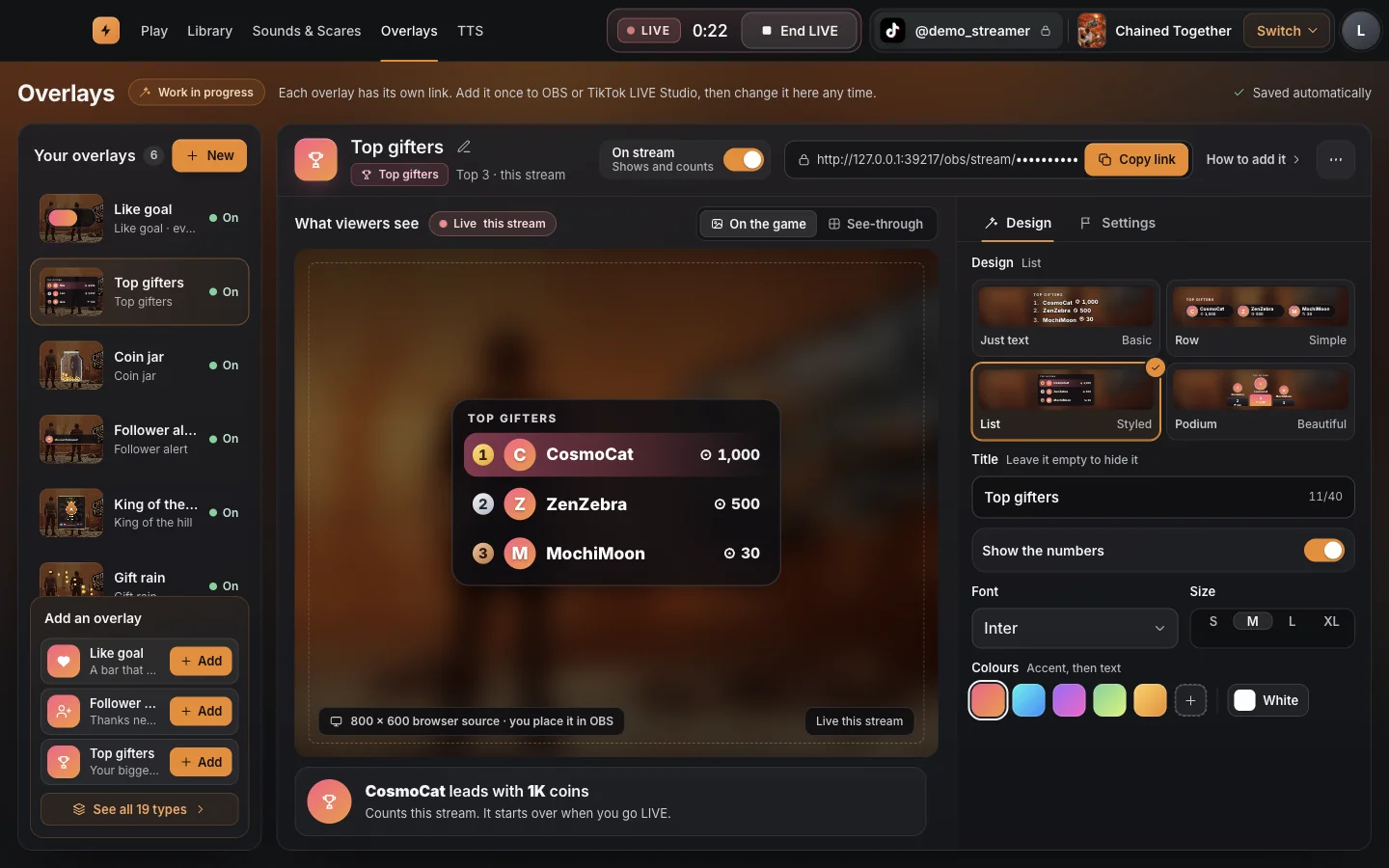
Open the Overlays tab and click + New (or a preset under Add an overlay, or See all 19 types). The overlays page has a Work in progress badge: some types are still being rebuilt.
| Group | Types |
|---|---|
| Goals | Like goal, Share goal, Follower goal, Coin goal |
| Alerts | Follower alert |
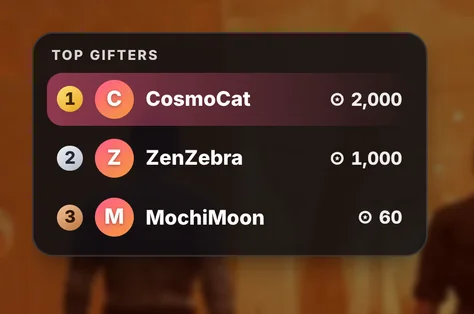
| Tops | Top gifter, Top gifters, Top liker, Top likers, Top gift, Top streak |
| Latest | Last follower, Last gifter, Last sharer, Last liker |
| Gifts | Coin jar, Gift rain, Balloon pop, King of the hill |
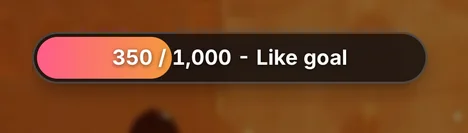
There is no limit on how many overlays you make. Everything counts this stream and starts over when you go LIVE. A like goal can be different for each game.
 |
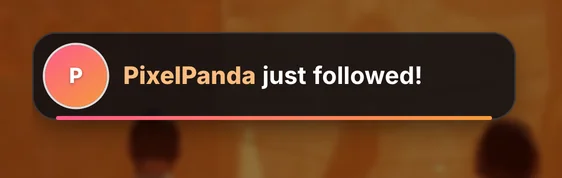 |
| Like goal | Follower alert |

Make and edit an overlay
- Open Overlays.
- Click an overlay in Your overlays, or click + New and choose a type.
- Change it in the editor. The Design tab has the look (for example Just text, Row, List or Podium for Top gifters, plus the title, font, size and colours). The second tab has the other options: it is called Settings, or Goal & event (set per game) for the like goal.
- What viewers see shows a live preview. Switch between On the game and See-through to check it on a game picture or on a transparent background. While you’re LIVE the preview uses this stream’s data (Live this stream), otherwise sample names. The line under the preview sums it up, for example “CosmoCat leads with 1K coins” or “380 more likes to 1K”.
Changes are Saved automatically. The On stream · Shows and counts switch hides an overlay from your stream without deleting it.
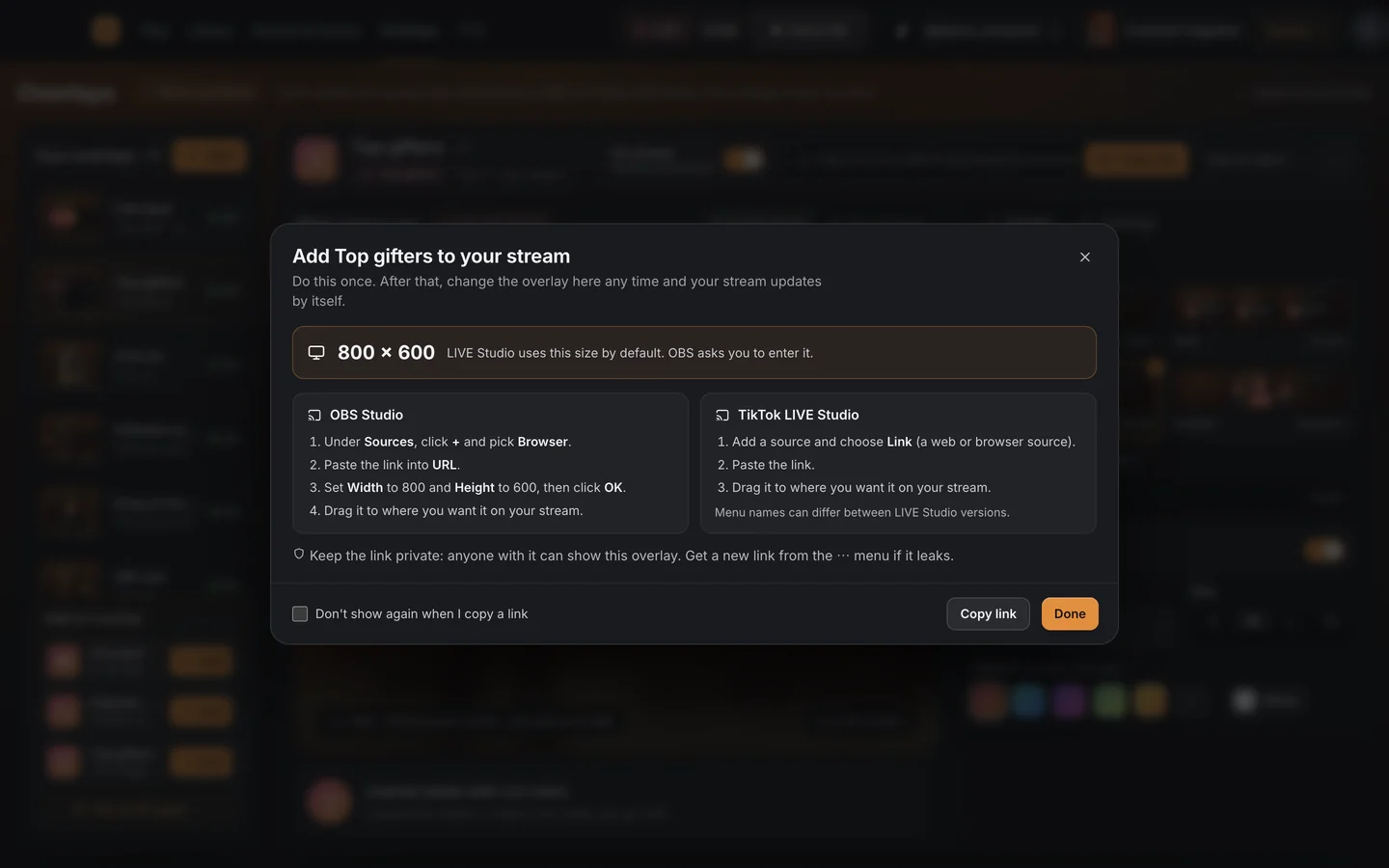
Add an overlay to OBS Studio
- In HypeMyStream, open the overlay and click Copy link.
- In OBS, under Sources, click + and pick Browser.
- Paste the link into URL.
- Set Width to 800 and Height to 600, then click OK.
- Drag it to where you want it on your stream.
The widget is centred in the 800 × 600 source and scaled down if it doesn’t fit.
Add an overlay to TikTok LIVE Studio
- In HypeMyStream, open the overlay and click Copy link.
- In LIVE Studio, add a source and choose Link (a web or browser source).
- Paste the link.
- Drag it to where you want it on your stream.
LIVE Studio uses 800 × 600 by default, so you don’t need to set a size. Menu names can differ between LIVE Studio versions.
When you click Copy link, the app shows these steps in the Add <name> to your stream window. Tick Don’t show again when I copy a link to skip it next time. How to add it next to the link opens it again.
Other things that use a link
The same server shows these. Each one has its own link and the same 800 × 600 size.
| What | Where you copy the link | Page |
|---|---|---|
| Overlays | Overlays → the overlay → Copy link | This page |
| Banner overlay | Game page → Banner overlay → OBS URL → Copy, or Add to stream in the banner editor | Banner overlay |
| Lucky Wheel, Lucky Cards | The Lucky page → Copy OBS URL | Lucky Wheel and Lucky Cards |
| Mute Wheel | The Mute Wheel page → Copy link | Mute Wheel |
The links look like this, with a private code at the end:
| What | Link |
|---|---|
| An overlay | http://127.0.0.1:39217/obs/stream/<overlay id>/<code> |
| Banner | http://127.0.0.1:39217/obs/banner/default/<code> |
| Lucky Wheel / Lucky Cards | http://127.0.0.1:39217/obs/lucky/wheel/<code>, .../obs/lucky/cards/<code> |
| Mute Wheel | http://127.0.0.1:39217/obs/mute-wheel/default/<code> |
Jumpscares are not a link: they are a window on your screen. See Where jumpscares show up.
Links survive restarts
A link stays the same when you restart the app or your computer. The private code is saved in your data folder, and
the server always tries port 39217 first.
If another program already uses port 39217, the app picks a free port instead, and every link changes. Copy the
links again, or free the port, or choose a fixed port of your own with the HMS_LOCAL_OBS_PORT environment
variable:
setx HMS_LOCAL_OBS_PORT 39300
Then quit HypeMyStream, start it again, and copy the links again (they now use the new port).
Keep the links private
Anyone with a link can show that overlay. Don’t show the link on stream. If a link leaks, open the ⋯ menu (More) next to Copy link and choose Get a new link. The old link stops working right away (OBS then shows “Overlay URL was regenerated”), so paste the new one into OBS or LIVE Studio.
The ⋯ menu also has Rename, Duplicate and Delete overlay.
Sounds from overlays
Some overlays play a sound, for example when a goal is reached or an alert shows. The Lucky widgets and the Mute Wheel play spin sounds too. These sounds play inside the browser source, not through the app. In OBS, open the source’s properties and tick Control audio via OBS to hear them on stream.
If an overlay doesn’t show
- Keep HypeMyStream open. If it is closed, the source shows an error box instead of the overlay.
- Use
127.0.0.1exactly as copied. A link changed tolocalhostis refused (“Loopback requests only”). - Check that the overlay’s On stream switch is on.
- Many overlays stay empty until something happens: a follower alert appears when someone follows, top lists fill up with gifts and likes. Go LIVE (or use the offline simulation) to see them.
- In OBS, open the source’s properties and click Refresh cache of current page if it still shows an old state.
More in Troubleshooting.