Troubleshooting
Short fixes for the most common problems. If yours isn’t here, see Get help.
Try the offline simulation first: Settings → TikTok LIVE → Offline simulation On, then Go LIVE. If things work there, the problem is the TikTok connection, not your setup.
TikTok LIVE won’t connect
When Go LIVE fails, the app says why. The most common messages:
| Message | What to do |
|---|---|
| ”@… isn’t LIVE on TikTok right now. Start your LIVE first, then connect.” | Start your LIVE in TikTok or TikTok LIVE Studio first, then press Go LIVE. |
| “Couldn’t find a TikTok LIVE for @…” | Check your TikTok username (click your name in the top bar) and that you’re LIVE. |
| “Invalid TikTok username” | Use your @username, not your display name. |
| “The free TikTok signing service is busy right now (rate limited)…” | Wait and try again, or add your own free Euler Stream sign key in Settings → TikTok LIVE. |
| “Your Euler Stream sign key reached its rate limit…” | Wait a few minutes and try again. |
| “Euler Stream did not accept your sign key…” | Paste the key again in Settings → TikTok LIVE → Euler Stream sign key. |
| “Connecting to TikTok timed out…” / “Couldn’t reach TikTok…” | Check your internet connection. |
| “Temporarily blocked by TikTok — try again later” | Wait, then try again. |
The full list is in Go LIVE on TikTok.
The game doesn’t react
- Open the game’s page and check Game setup. All steps should be done: Install the mod, Game connected, Picked for LIVE. If not, click Install & Set Up.
- Press Test on a gift event. If nothing happens in the game, the mod is not running: start the game and run the setup again.
- Check that the gift event’s On switch is on.
- While LIVE, check Live activity. “No gift event for this gift” means that gift has no gift event yet.
If the app says the mod isn’t installed, open Help & support → Quick fixes → Open setup.
Some games in the library don’t work in the self-hosted release (the Roblox games, Minecraft Parkour, Minecraft Dropper and Rollin’ Ravioli). Keyboard Game works but starts with no gift events; add your own. See Games and mods.
A hosted web game won’t start
HMS - Dropper, HMS - Strimmer and HMS - Leaf Blower have no mod. The first Launch downloads the game from GitHub and checks it; then the game opens in its own window.
| You see | What to do |
|---|---|
| Launch stays busy for a while the first time | The game is downloading (Strimmer about 37 MB, Leaf Blower about 61 MB). Wait for the game window. |
| “The downloaded mod does not match its published checksum…” | The download was cut off or changed on the way. Click Launch again. Hosted web games share this message with mods. |
| An error that GitHub can’t be reached | Check that you’re online and that github.com is reachable. The internet is only needed for the first launch. |
| “Couldn’t start … the local server isn’t running.” | The app’s local server (the one that also serves the overlays) didn’t start. Restart the app. |
| The game window opens but gifts do nothing | Check that the game is picked for LIVE and the gift event is On. The game receives events on 127.0.0.1 port 7323 (Dropper), 7324 (Strimmer) or 7325 (Leaf Blower); another program on that port blocks them. |
| The mouse doesn’t move the view in Strimmer or Leaf Blower | Click into the game window to take control. |
To force a fresh download, close the app and delete web-games/<game> in the app’s data folder. More:
Hosted web games.
A mod won’t download or install
Mods are downloaded from GitHub when you install a game, then checked against their sha256. A package that doesn’t match is refused and never installed.
- Check that you’re online and that github.com is reachable.
- Try again later if GitHub is slow.
- Some games also download a mod runtime from its own site (UE4SS, CLEO Redux, Ultimate ASI Loader, ScriptHookV, BepInEx). Those need the internet too.
More: When the install doesn’t work.
Viewers can’t hear the sounds
Gift sounds, jumpscare sounds and text to speech play on your computer, not inside OBS.
- Open Settings → Language & sound. Check Where sounds play and press Test sound.
- In OBS, make sure that output is captured (usually Desktop Audio).
- On stream, sounds play only while you’re LIVE. Play and Test in the app work any time.
Sounds from overlays, the Lucky widgets and the Mute Wheel play inside the browser source. In OBS, open the source’s properties and tick Control audio via OBS.
Jumpscares don’t show on stream
Check Sounds & Scares → Jumpscares → Where jumpscares show up:
- Over my screen: OBS has to capture your main display (Display Capture).
- Window for OBS: add a Window Capture source for HypeMyStream Jumpscare Window above your game source.
Press Test on a jumpscare to check it.
An overlay is blank or shows an error
- Keep HypeMyStream running. The overlays are served by the app.
- Run OBS or LIVE Studio on the same computer. The links only work on
127.0.0.1. - Paste the link exactly as copied. A link with
localhostinstead of127.0.0.1is refused (“Loopback requests only”). - “Overlay URL was regenerated” (or “Banner URL…”, “Lucky URL…”, “Mute Wheel URL…”): the link was replaced. Copy the new link and paste it into the source.
- “Overlay not found”: the overlay was deleted.
- Check the overlay’s On stream switch.
- Empty is normal until something happens: alerts show when someone follows, top lists fill with gifts and likes.
- The banner is empty when the game has no gift events, or when Show for <game> is off.
The overlay links changed after a restart
The app uses port 39217. If another program has it, the app picks a free port and every link changes. Close the
other program, or set your own port with HMS_LOCAL_OBS_PORT, then copy the links again. See
Links survive restarts.
Text to speech is silent
- Check that Read chat aloud is on and that you’re LIVE.
- Press Preview on the TTS page. On Linux there is no TTS (“Local TTS is only available on macOS and Windows”).
- If you set
HMS_LOCAL_TTS_VOICE, check the voice name. A wrong name makes every message fail. - Use Test a chat message to see which rule skips a message.
See Text to speech.
Sounds or banners are missing
Open Settings → App and click Clear cache & reload (“Sounds or banners missing?”). It clears this PC’s cache and reloads the app. Your settings stay.
Known display issues
This is a display bug in this release. The feature works.
- Lucky Wheel / Lucky Cards: OBS source: never connected shows even when OBS shows the widget.
Get help
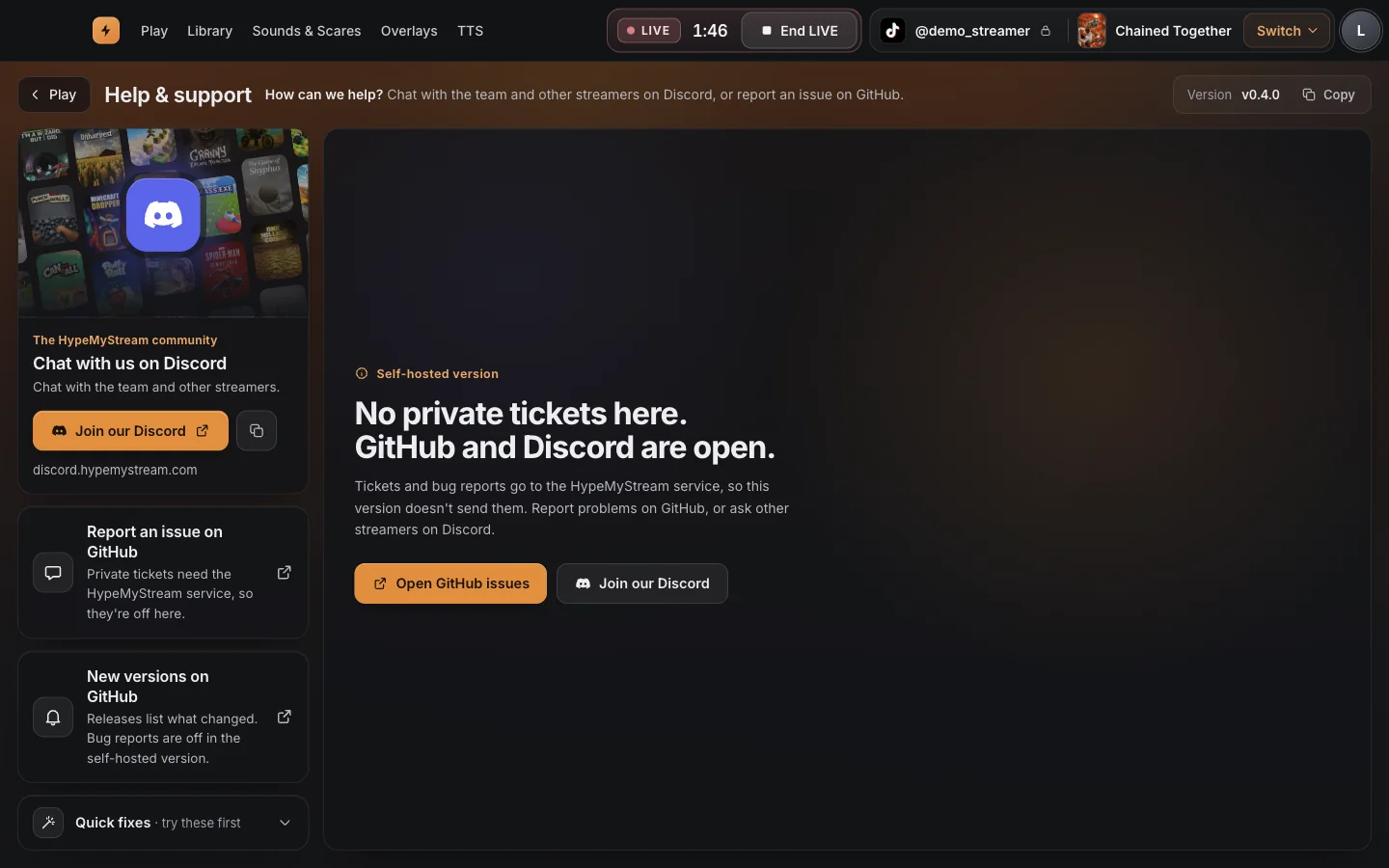
Open the account menu → Help & support. It shows your app version (Copy puts it on the clipboard) and links to GitHub and Discord.
- Open GitHub issues: report a bug at github.com/hypemystream/hypemystream/issues.
- Join our Discord: chat with other streamers at discord.hypemystream.com.
When you report a bug, include the app version, your Windows version, the game, the exact message you saw and what you did. Don’t post your Euler Stream sign key, webhook addresses or overlay links.
If the app crashed, it leaves a session log in the sessions folder of its data folder (on Windows
%APPDATA%\hypemystream\sessions). It is a binary .bin file, not plain text; a clean exit deletes it. Attach it
only if a maintainer asks for it.