Games and mods
HypeMyStream ships the original game library. You add the games you own, the app installs a small mod into each one, and your viewers’ gifts then control that game.
- The library
- Add a game
- Install the mod
- Hosted web games
- Which games don’t work in the self-hosted release
- What still needs the internet
The library
Open the Library tab in the top bar.
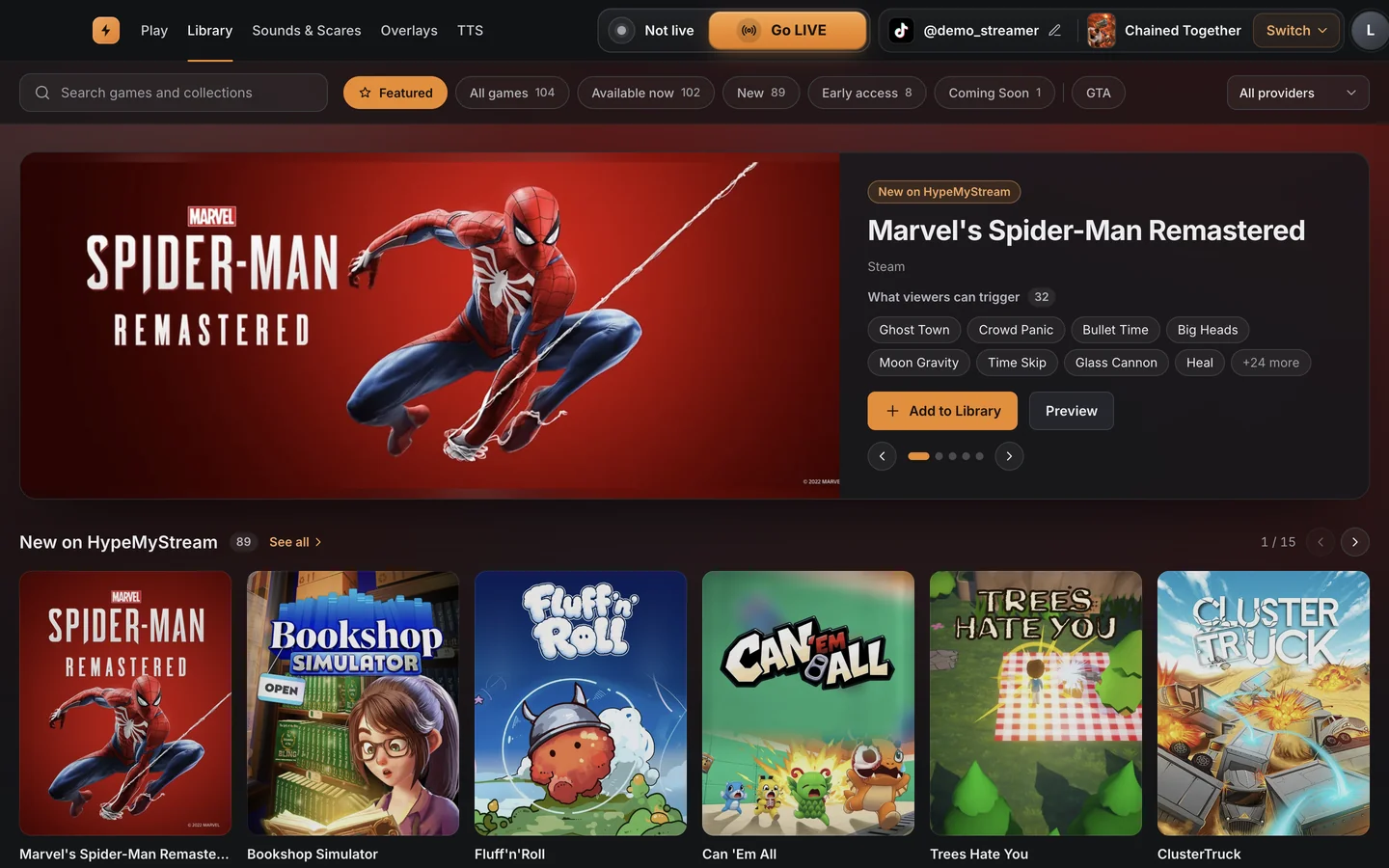
- Search games and collections finds a game by name.
- The chips jump to a section or narrow the list: Featured, All games, Available now, New, Early access, Coming Soon and collections such as GTA. Each chip shows how many games it holds. All games scrolls down to the full grid; it is not a filter.
- All providers limits the list to one store or platform: Epic, Minecraft, Roblox, Steam or Xbox.
- The featured game at the top has Add to Library and Preview. Below it is the row New on HypeMyStream with See all.
The All games grid can be sorted (New first, A–Z, Z–A), and Hide games in library hides the ones you already added.
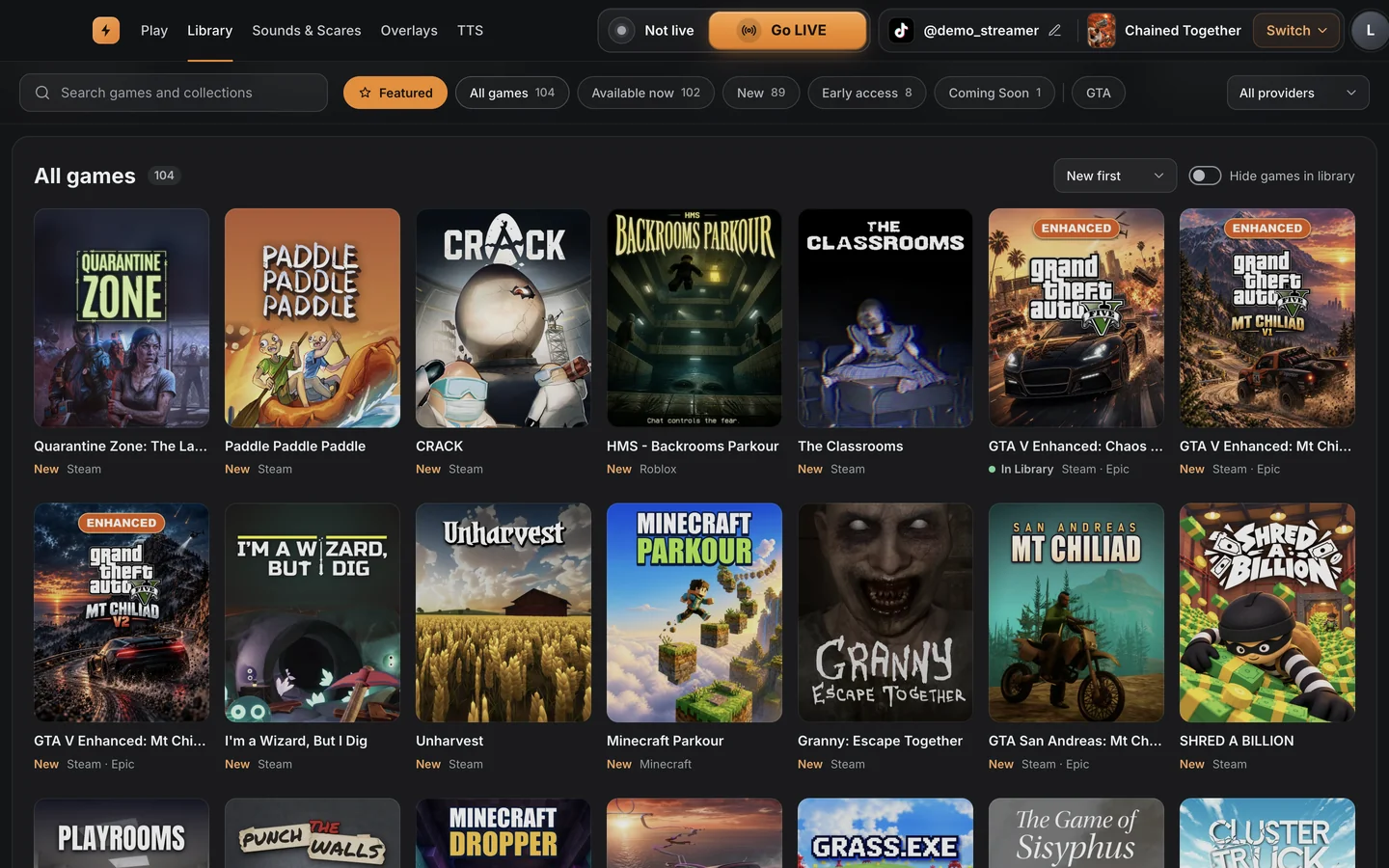
Each card shows the store the game comes from (for example Steam, or Steam · Epic) and a status:
| Badge | Meaning |
|---|---|
| New | Recently added to the library. |
| Alpha | Early access. It works, but the mod is still young. |
| In Library | You already added it. |
| Live game | Gifts go to this game right now. |
| Coming Soon, Locked | Can’t be added. The preview says Not available to add yet. |
Add a game
You need your own copy of the game, installed on this PC.
- In the Library, click Add on the game’s card. Or click the poster to open its preview, then Add to Library. The card now shows In Library.
- Click View on the card (or Open game page in the preview) to open the game’s page. Your added games also appear under Your games on the Play page.
- To send gifts to this game, click Make live on its card under Your games, or Pick for LIVE on its page. Only one game gets gifts at a time. You can change it any time, even mid-stream, with Switch in the top bar.
To remove a game, open its page, click the menu button on the game card (Game menu) and choose Remove from library…. Your gift events for it are kept, so you can add it back later.
Install the mod
Most games need a mod: a small package that lets HypeMyStream talk to the running game. The game’s page shows a Game setup checklist with three steps: Install the mod, Game connected and Picked for LIVE.
- Close the game.
- On the game’s page, click Install & Set Up (on the Play page the same wizard is behind Run setup wizard).
- Set up <game>: the wizard looks for your install. If it finds more than one copy, pick the one you launch. If it finds none, click Locate folder and choose the game’s install folder, or install the game and click Re-check.
- Install mod loader: some engines need a mod loader first (for example UE4SS for Unreal games, or the ASI Loader and ScriptHookV for GTA V). The wizard downloads it from its publisher and puts it in the game folder.
- Install the mod: click Install. The wizard downloads the mod, checks it and copies it into your game folder. It usually takes a few seconds. When it shows Mod installed, click Done.
- Start the game with Launch on the game’s page. When the mod answers, the checklist shows Game connected.
Not every game has every step. GTA V games start with a GTA mod safety step: the mods are for Story Mode only, BattlEye has to be off, and you should not play GTA Online with mods installed.
Where the mods come from
The mods are the original HypeMyStream packages, unchanged. They are not inside the installer. The app downloads
each one when you install it, from the GitHub release
mods-v1:
https://github.com/hypemystream/hypemystream/releases/download/mods-v1/<gameId>-<modVersion>.zip
Every game in the catalog carries the sha256 checksum of its mod. After the download the app computes the file’s sha256 and compares it. If they differ, the file is deleted and the install stops with:
The downloaded mod does not match its published checksum (sha256 …, expected …). Try again; if it keeps failing, the release file was changed.
Mods are installed into the game’s own folder, not into the app’s data folder. To take one out again, use Uninstall mod on the game’s page.
When the install doesn’t work
| You see | What to do |
|---|---|
| We couldn’t find <game> | Click Locate folder and pick the folder the game is installed in. |
| Install didn’t finish / Make sure the game is closed, then try again. | Close the game and click Try again. |
| This game folder is read-only. Accept the Windows administrator prompt, then try again. | The game is in a protected folder. Accept the Windows prompt when you retry. |
| Administrator permission was declined. | You clicked No on the Windows prompt. Retry and accept it. |
| A message that only the Steam version works, or that an Epic or Game Pass copy is protected by anti-cheat | Some games can only be modded in their Steam version. Install that one and pick its folder. |
| Windows Smart App Control is on | Smart App Control can stop the mod from loading. If the game starts without the mod, the game’s page shows how to fix it. |
| The checksum message above | Try again. A failed or cut-off download is the usual cause. |
| Mod rejected … lines in Live activity | The game is not running, or the mod didn’t load. Start the game with Launch and wait for Game connected. |
More fixes: Troubleshooting.
Hosted web games
HMS - Dropper, HMS - Strimmer and HMS - Leaf Blower are not games you own and mod. They are browser games made for HypeMyStream, and the app opens them in a game window of its own. In the original app they were loaded from HypeMyStream’s servers; this release runs the original game files from your own computer instead.
| Game | What it is | Commands | Download |
|---|---|---|---|
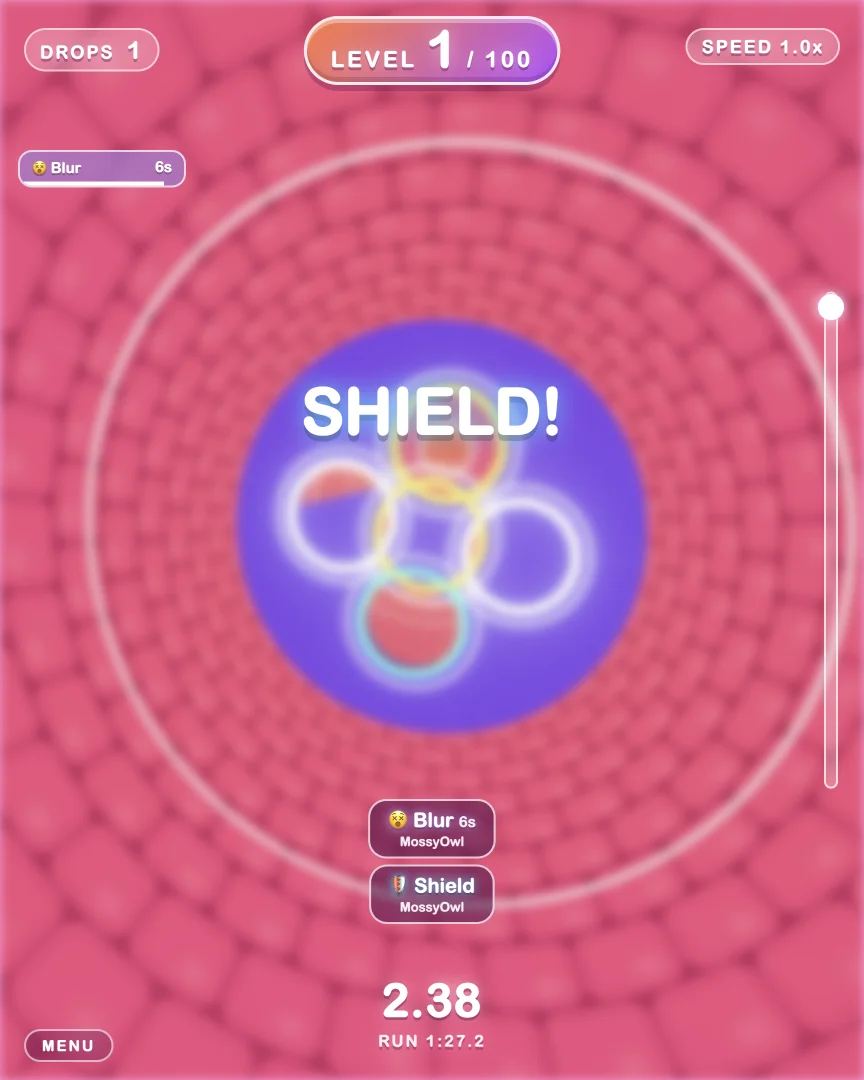
| HMS - Dropper | A falling game: drop down a tunnel, 100 levels. Starts with a photosensitivity warning. | 17 | about 0.4 MB |
| HMS - Strimmer | First person with a strimmer: cut the grass, counted down by Grass left. | 37 | about 37 MB |
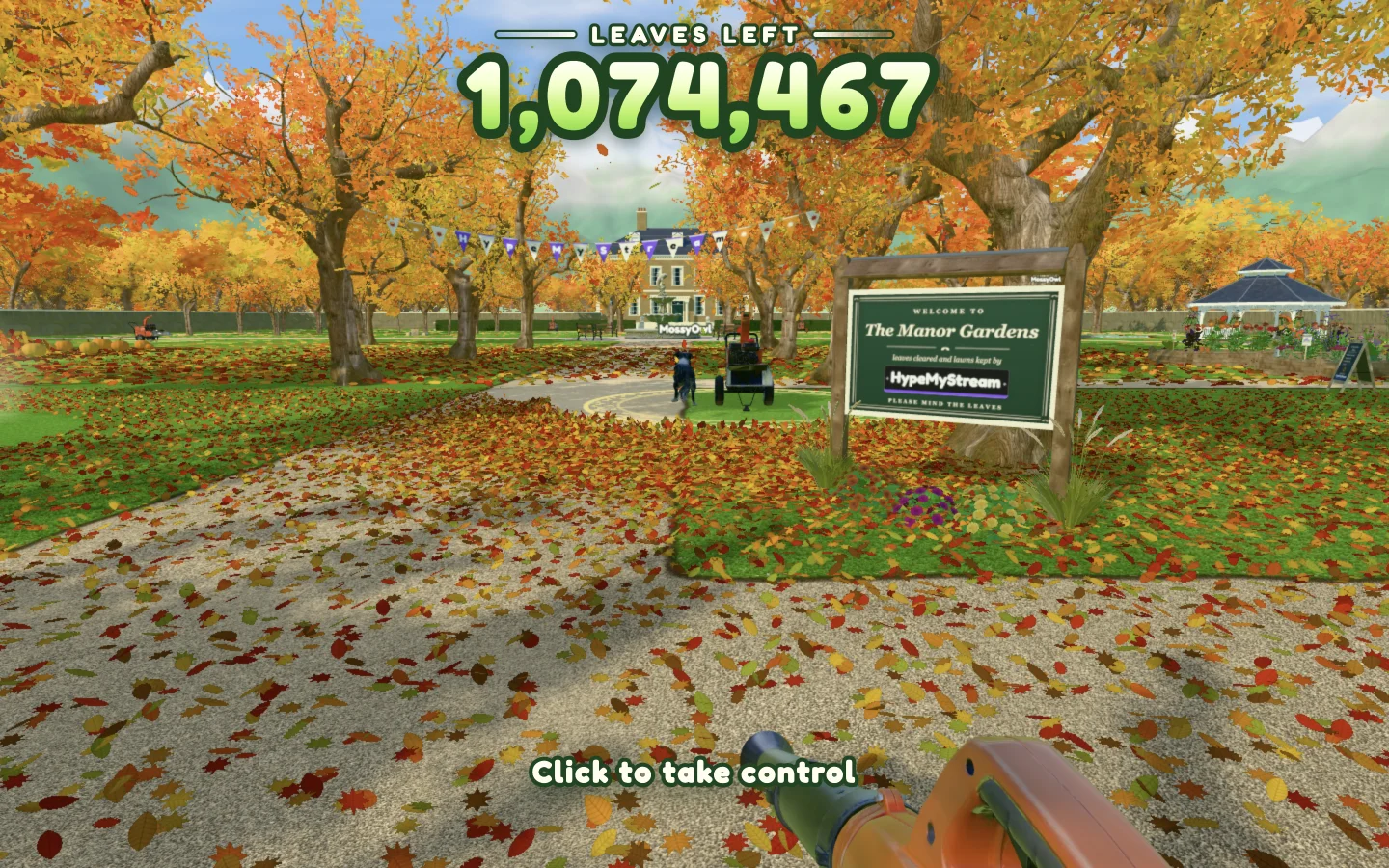
| HMS - Leaf Blower | First person with a leaf blower: clear the leaves from a manor garden, counted down by Leaves left. Added to HypeMyStream after 0.3.150. | 43 | about 61 MB |
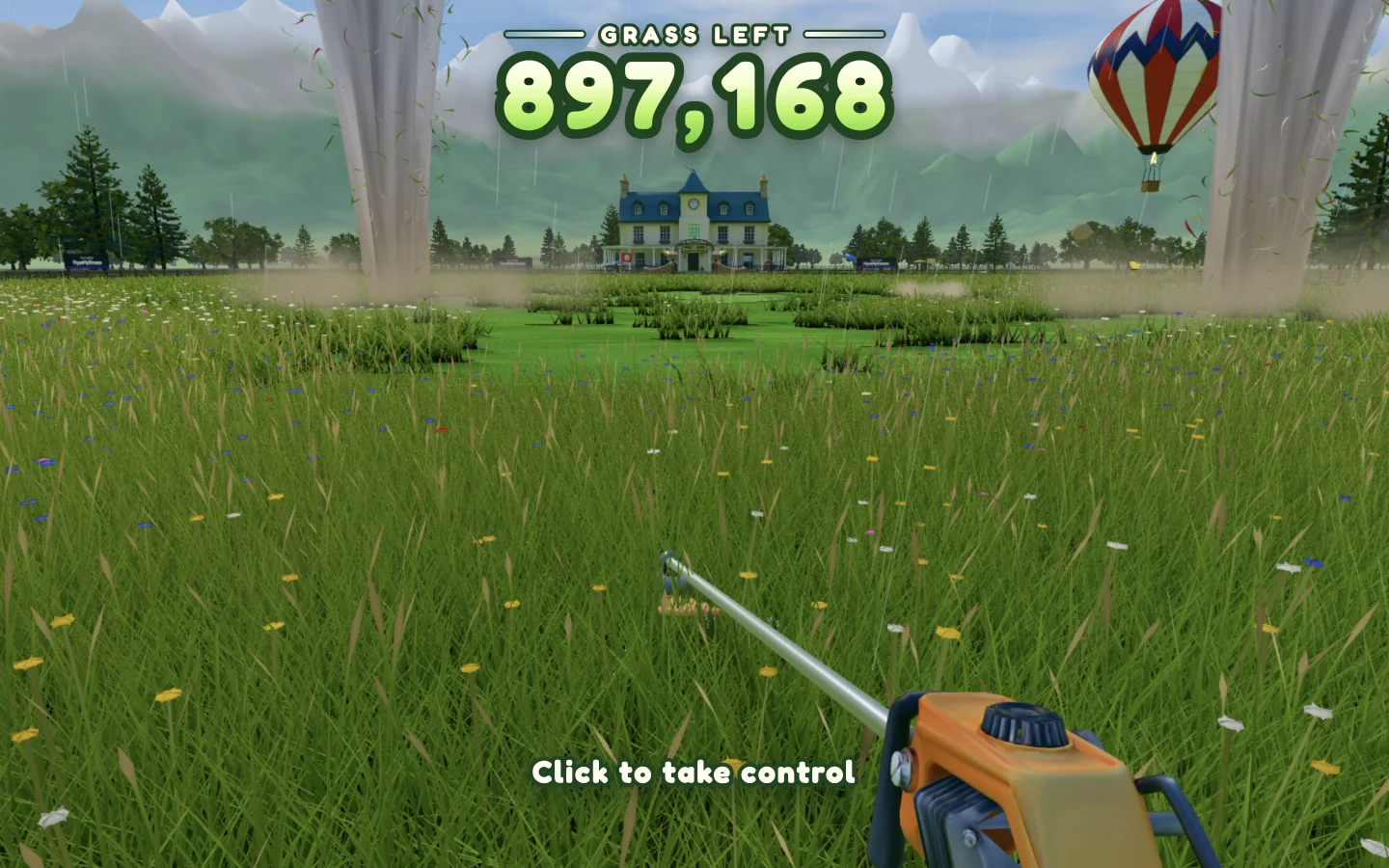
Gifts, likes, follows, shares and chat drive them like any other game: a viewer’s gift drops a tornado, a balloon or a robot mower into the game, with the viewer’s name on screen.
Play one
- Add the game in the Library and open its page. There is no mod to install and no game folder to pick.
- Click Launch. The first time, the app downloads the game, so the button stays busy for a moment (a few seconds for Dropper, longer for the two big ones, depending on your connection).
- The game opens in its own window and the page shows Game window open. In Strimmer and Leaf Blower, click into the window to take control of the mouse.
- Pick it for LIVE and set up its gift events as for any other game. To try them without going LIVE, use the offline simulation.
Later launches start straight away and need no internet. Game progress, such as Leaf Blower’s Continue, is kept between restarts.
Where the games come from
The games are the original HypeMyStream files, unchanged. They are not inside the installer. On the first
Launch the app downloads one zip per game from the GitHub release
web-games-v1:
https://github.com/hypemystream/hypemystream/releases/download/web-games-v1/<game>-<version>.zip
As with mods, the catalog carries each zip’s size and sha256. A download that doesn’t match is deleted and the game doesn’t start. The message is the same one mods use (“The downloaded mod does not match its published checksum…”); just click Launch again.
The app unpacks the game into the web-games folder in its data folder (see
Where your data lives):
| Path | Content |
|---|---|
web-games/<game>/<version>/ |
The game’s files: index.html and its assets folder |
web-games/<game>/<version>.installed.json |
Written last, when the game is complete. Without it the app downloads the game again. |
<game> is dropper, strimmer or leaf-blower. To free the space or force a fresh download, close the app and
delete the game’s folder. When an app update brings a new version of a game, the app downloads it on the next
launch and removes the old one.
The app’s local server then serves the game at http://127.0.0.1:39217/play/<game>/index.html (on your own
computer only; 39217 is the default port), and the game window loads only those files. Live events reach the game
through a port on 127.0.0.1 (7323 for Dropper, 7324 for Strimmer, 7325 for Leaf Blower). No HypeMyStream account
or cloud is involved.
Unlike the game mods, the hosted web games are not Windows-only: they also run when you start the app from source on macOS.
The six that are not available
The catalog has nine hosted web games: the eight of HypeMyStream 0.3.150 plus Leaf Blower. Six of them are not in this release: Let’s Build Up, Diamond Hunter, Flapping Frenzy, Hopping Havoc, Planet Blaster and Spiral Drop. Like the other three, they ran on HypeMyStream’s servers and were never part of the desktop app, but no copy of their files is available for this release, so there is nothing to run locally. They stay in the bundled catalog but are hidden from the library.
Which games don’t work in the self-hosted release
The original HypeMyStream ran part of its library on its own servers. Those parts are gone, so a few games are listed but can’t be played.
| Game | What you see | Why |
|---|---|---|
| HMS - Backrooms Parkour, HMS - Marble Run, HMS - Tidy Up, Roblox: Parkour (Roblox) | Listed. Linking your Roblox account fails with “Roblox games isn’t available in the self-hosted version.” | Commands reached Roblox through the HypeMyStream cloud relay. |
| Minecraft Parkour, Minecraft Dropper | Listed. The game page says Not available yet · This game isn’t open yet. | They were hosted servers with no local plugin. Minecraft - Survival works: it runs a server on your PC. |
| Rollin’ Ravioli | Locked, can’t be added. | Its mod package was not in the original files. |
| GameTik: League of Monsters | Coming Soon, can’t be added. | It was not released in the original either. |
| Keyboard Game | Works, but starts with no gift events. | The cloud’s default key mappings were not in the original files. Add your own. |
Six hosted web games (Let’s Build Up, Diamond Hunter, Flapping Frenzy, Hopping Havoc, Planet Blaster and Spiral Drop) are not listed at all; see Hosted web games. HMS - Dropper, HMS - Strimmer and HMS - Leaf Blower do work: the app runs them itself.
Everything else keeps its original local behaviour: Unity, Unreal, GTA, Marvel’s Spider-Man Remastered, Call of Duty: Black Ops III Zombies, Minecraft - Survival, the GameTik webhook games and keyboard input.
The mods are for the Windows versions of the games. On macOS and Linux you can run the app from source, but game mods and keyboard actions don’t work there.
What still needs the internet
Installing a game needs the internet once: the mod comes from GitHub, and some engines download a third-party mod
loader (UE4SS, BepInEx libraries, CLEO Redux, Ultimate ASI Loader, ScriptHookV). Minecraft - Survival downloads
its server and Java the first time. A hosted web game is downloaded from GitHub on its first Launch. After
that, the game and its mod talk to HypeMyStream only on your own PC (127.0.0.1).
How the catalog and the mod release are built: Game library internals.