Sounds and scares
The Sounds & Scares tab holds two things your viewers can set off with gifts, follows, shares, likes and chat:
- Soundboard: sounds that play when viewers send gifts or do something else.
- Jumpscares: pictures that pop up on your stream, with a sound if you like.
Both use one library of sound files, Your sounds, on the right of the page. The same file can also play for a game’s gift event or a webhook.
On stream, sounds and jumpscares go off only while you’re LIVE. The Play and Test buttons work any time.
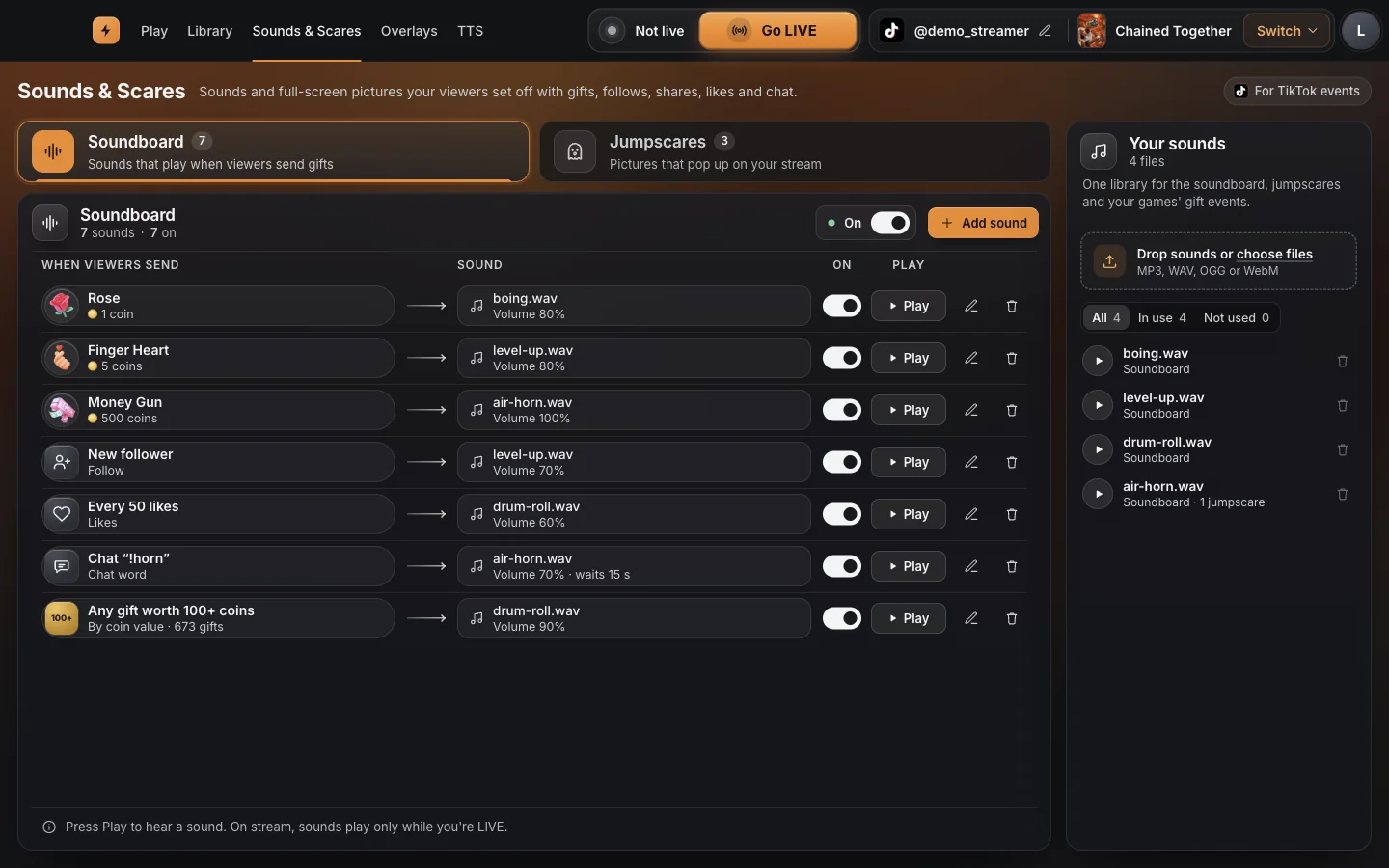
Add your sound files
- Open Sounds & Scares.
- In Your sounds, drop files onto Drop sounds or choose files, or click choose files.
- Use MP3, WAV, OGG or WebM files. Short clips (1–3 s) work best on stream.
Each file shows whether it is In use or Not used. Deleting a file asks first and names everything that uses it.
Add a sound to the soundboard
- Open Sounds & Scares → Soundboard.
- Click Add sound, or pick one of the ideas under Add a sound for…: A gift, A follow, Likes, A share, Chat word, A big gift or By gift size.
- In the editor:
- What sets it off? Pick the trigger: a gift, a new follower, likes, a share or a chat word. Below it, set Wait before it can play again: None, 5 s, 30 s, 1 min or Other (up to 24 hours).
- Your key: how it looks on your soundboard. Hear it now plays it through your speakers.
- Which sound? Pick a file from Your sounds, or drop a new one. Set How loud below the list.
- Click Add sound (or Save changes when you edit one).
Each row on the soundboard has On, Play, edit and delete buttons.
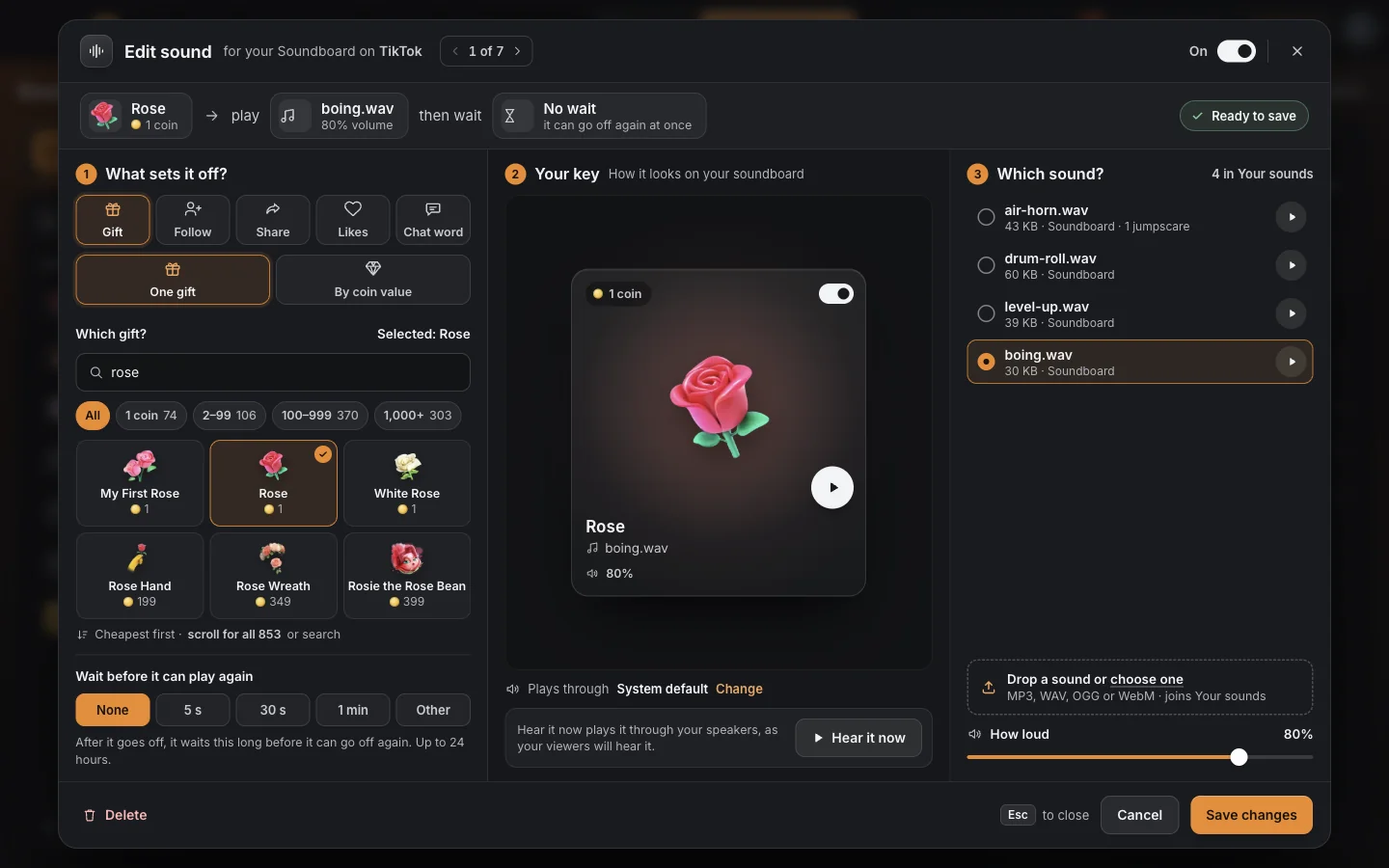
In Which gift? the list starts with the cheapest gifts. Type in Search or click a price chip (1 coin, 2–99, 100–999, 1,000+) to find a gift. Any gift sets the sound off for every gift.
Triggers
| Trigger | When it goes off |
|---|---|
| A gift | A viewer sends that gift. With By coin value you pick a coin range instead of one gift. |
| A follow | Someone new follows you while you’re LIVE. |
| Likes | One viewer reaches the number of likes you pick. Each viewer’s likes count on their own. |
| A share | A viewer shares your LIVE. |
| Chat word | A viewer’s whole chat message is that word, for example !airhorn. Capitals don’t matter. |
Sounds by gift size
By gift size (or Sounds by gift size at the top of the soundboard) sets up bigger sounds for bigger gifts in one go. There are five coin tiers: 1–99, 100–499, 500–999, 1,000–4,999 and 5,000 and up. Pick a sound for each tier you want and leave the others blank.
A gift that has its own sound plays that sound instead, so it never plays two.
Add a jumpscare
A jumpscare shows a picture over your stream, with a sound if you like.
- Open Sounds & Scares → Jumpscares.
- Click Add jumpscare (or Make your first jumpscare on an empty list).
- In the editor:
- What sets it off? A gift, a follow, a share, likes or a chat word, like on the soundboard. Below it, set Wait before it can show again.
- What do viewers see? Click Choose a picture. Use PNG, JPG, GIF or WebP, up to 20 MB. Set How long it stays (0.5 to 15 s) and How big (from Tiny through Normal to Huge). It fades in and out on its own.
- And a sound? Optional. Pick a file from Your sounds and set How loud.
- Click Test on my screen to see it full size over your desktop, with its sound.
- Click Add jumpscare (or Save changes) to save it.
A jumpscare needs at least a picture or a sound. A new jumpscare replaces the one on screen.
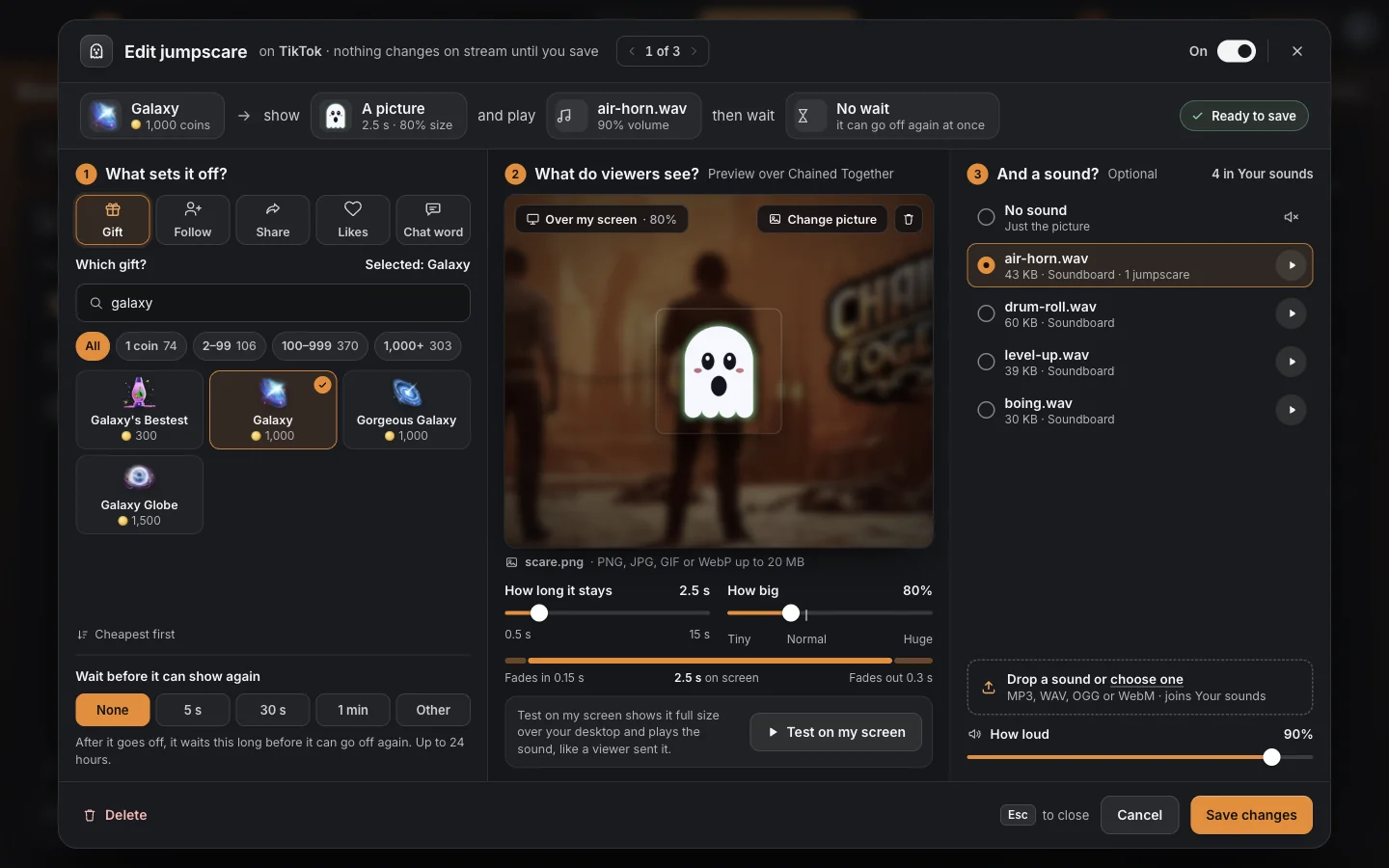
Under the preview you see the name of the picture you just chose. The name isn’t saved, so when you open a saved jumpscare again it says Your picture.
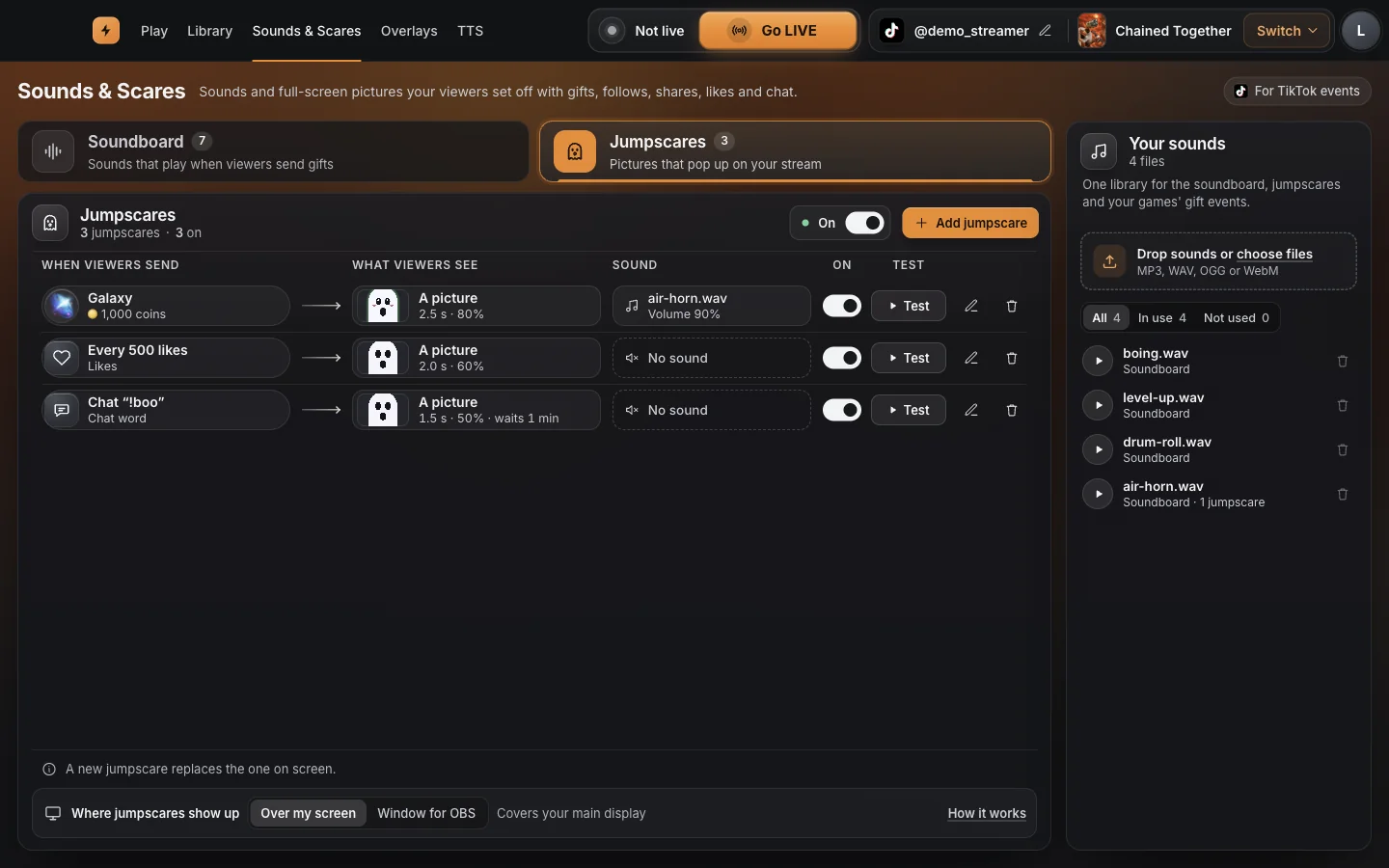
Where jumpscares show up
At the bottom of the Jumpscares tab, under Where jumpscares show up, pick one. This is saved on this PC only.
- Over my screen: the picture covers your main display. Viewers see it when OBS captures that display (a Display Capture source).
- Window for OBS: a transparent window stays open for OBS to capture. In OBS, add a Window Capture source for the window named HypeMyStream Jumpscare Window and place it above your game source. The sound still plays through the app.
How it works next to the choice explains the same in the app.
The jumpscare window ignores the mouse, so you can keep playing while a picture is on screen.
Turn them on or off
- The Soundboard and Jumpscares tabs each have an On / Off switch at the top.
- The Stream extras card on the Play page has the same switches.
- Each sound and jumpscare also has its own On switch.
When many gifts arrive at once
Settings → When gifts pile up decides how gift sounds share the room: Play them all, Limit how many, Big sounds win or Space them out. Jumpscares and chat text to speech are never affected.
Where the sound plays
Sounds play through the output shown in the Plays through chip at the top of the page. Click Change there, or go to Settings → Language & sound → Where sounds play. Make sure your streaming app captures that output, or your viewers won’t hear the sounds.
Your sound files and pictures are saved inside the app’s data folder, in local-unlimited-state.json.