Commands, gifts and likes
A gift event is one rule: “when viewers do this, that happens in the game”. Each game has its own list of gift events. Gifts are the most common trigger, but likes, new followers, shares and chat commands work the same way.
- The gift events table
- Add a gift event
- How each trigger fires
- Random events
- Keyboard games
- What you see while LIVE
- Viewer names in the game
- Beyond the game
The gift events table
Open a game’s page: Play → Edit gift events, or View on the game’s card in the Library.
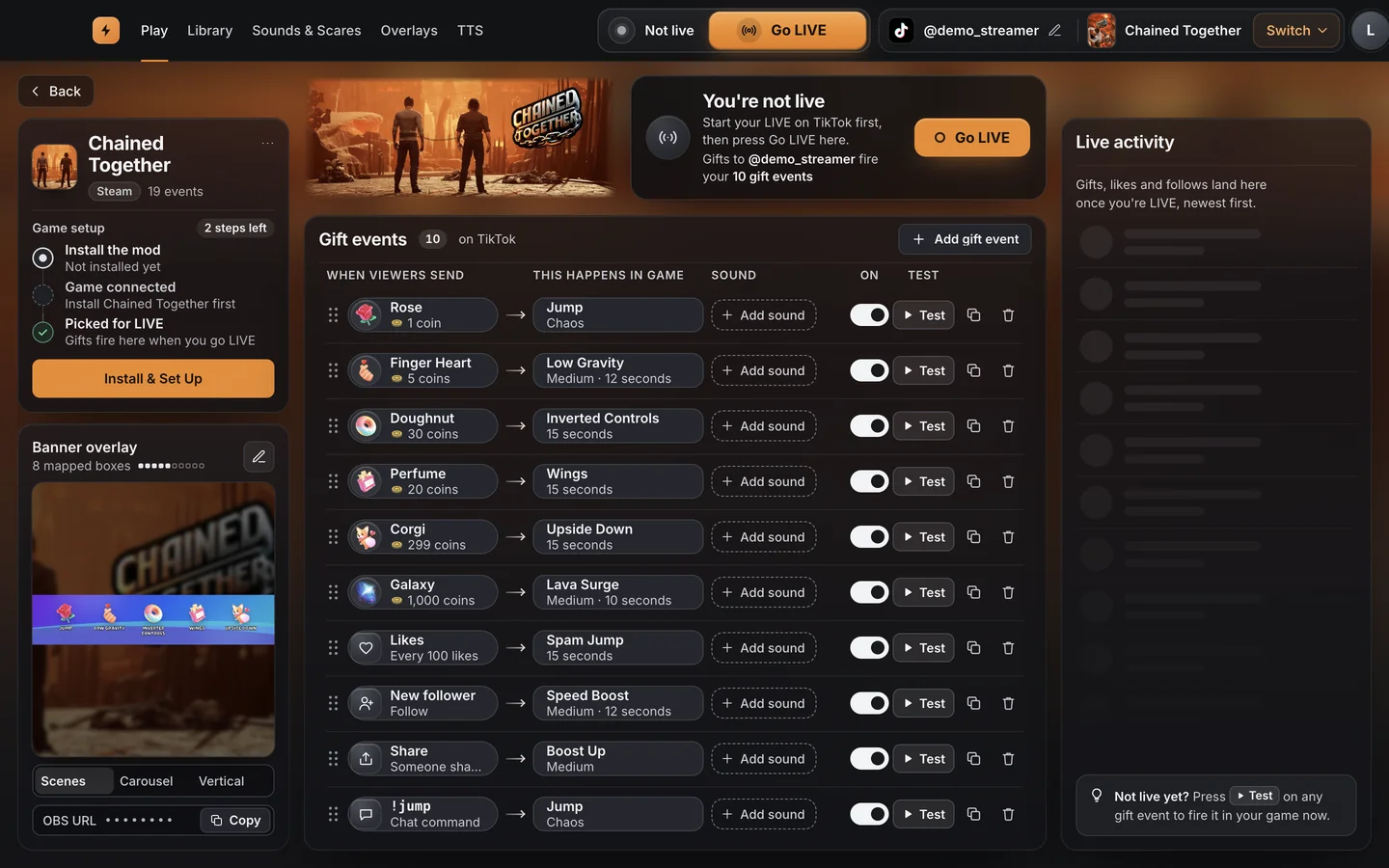
The Gift events table has one row per rule:
| Column | What it is |
|---|---|
| When viewers send | The trigger: a gift, likes, a new follower, a share or a chat command. |
| This happens in game | The game event that fires, with its settings. |
| Sound | An optional sound. Add sound picks one. |
| On | Switch a row off to keep it without it firing. |
| Test | Fires the game event in your game right now, even when you are not LIVE. |
Each row also has Duplicate and delete buttons. To change the order, drag a row, or select it and use the arrow keys.
Add a gift event
- Click Add gift event. The New gift event window opens.
- Under What viewers do, pick the trigger: Gift, Likes, New follower, Share or Chat command. For a gift, pick it from the grid. Search gifts, the price chips and the sort menu (Cheapest first, Priciest first, A–Z) help you find it. Gifts you already use show In use.
- Under What happens in the game, pick an event. Use Search events, the category list, or Show events (All, Unused, Used). Pick No game event if you only want a sound.
- Adjust the event’s settings, if it has any (strength, duration and so on). Text settings can use
{nickname}or{username}for the viewer’s name, for example to show who sent the gift inside the game. - Optional: open Timing to repeat the event (Repeat, 1 to 10,000 times) or delay it (Delay, 0 to 600 seconds). The summary reads, for example, Fires once per gift, right away.
- Optional: pick a Sound. It plays on your stream when the event fires. Set its Volume, and Repeat on combo if it should play for every gift in a combo instead of once.
- Optional: give it a Banner name, the text shown on the banner overlay.
- Click Add gift event.
Then press Test on the new row with the game running. Nothing is saved until you click Add gift event. Cancel or Esc closes the window; if you changed something, it asks Discard your changes? first.
Put small, funny effects on cheap gifts like Rose (1 coin) and big, game-changing ones on expensive gifts. Viewers send cheap gifts a lot, so their effects should be short.
How each trigger fires
Gifts
- One gift, one event. A gift fires its event once. A combo fires it once per gift: Rose ×4 fires the event 4 times. With Repeat set to 3, Rose ×4 fires it 12 times.
- Combos are counted as they come in. TikTok sends a combo in steps while the viewer keeps tapping; the app fires for each new gift and never counts one twice. The sound plays once at the start of a combo unless Repeat on combo is on.
- Any gift fires for every gift a viewer sends, in addition to events set up for that specific gift.
- Several events on one gift all fire, in the order of the table.
- The gift grid shows each gift’s price in coins. The stream totals on the Play page count diamonds.
Likes
- Likes needed counts likes from one viewer. “Likes every 100” means each viewer who sends 100 likes fires the event; 100 likes spread over many viewers don’t.
- TikTok sends likes in batches of 15, so the smallest setting is 15. The presets go from 15 to 300; Or any number goes up to 10,000.
- Leftover likes carry over: 120 likes on a “every 100” event fire it once and keep 20 toward the next one. A viewer’s leftover is forgotten after 15 minutes without likes from them, and when you start a new LIVE.
New followers
- Fires once each time someone follows you during your LIVE. There is nothing to set up.
- Only a viewer’s first follow each hour fires. If someone unfollows and follows again, Live activity shows “followed again (only a viewer’s first follow each hour fires)”.
Shares
- Fires once for every share of your LIVE.
- Per-viewer cooldown (off by default) makes each viewer wait before their shares fire the event again.
Chat commands
- Command is what a viewer types, for example
!jump. Capital letters don’t matter:!JUMPworks too. - The whole message has to be the command.
!jumpfires on “!jump”, but not on “!jump now” or “lol !jump”. - Cooldowns, in seconds (0 = no cooldown):
- For everyone: after anyone uses it, nobody can until this passes.
- For each viewer: before the same viewer can use it again.
- Super fans only limits the command to your TikTok subscribers.
Share and chat command events don’t get a card on the banner overlay.
Random events
One gift can pick from several game events at random.
- In the gift event window, under What happens in the game, click Make it random.
- Tick the events to mix in (Random: tick the events to mix in).
- With 3 or more events, set Events per gift to fire several at once.
- Chances: Equal, or Custom to drag a slider per event.
- Test a roll rolls once and fires what it picks in your game.
Back to one event leaves random mode. In the table, the row shows random · 1 of N.
Keyboard games
In Keyboard Game (keyboard input), a gift presses keys instead of calling a mod:
- Keys: click the field (or press Enter), then press the key or keys.
- Hold for: how long they are held, in milliseconds. Short presses (50 to 200 ms) suit taps like jumping; hold 500 ms or more for sustained input.
- Test starts a 5-second countdown so you can switch to the game window. Keys go to the focused game window.
Keyboard input works on Windows only.
What you see while LIVE
The Live activity feed on the Play page and on the game’s page lists what happened, newest first:
| Line | Meaning |
|---|---|
pixelpanda sent Rose ×3 / Jump · fired 3× |
A gift arrived and fired its event 3 times. |
zenzebra sent Money Gun / No gift event for this gift |
Nobody set up an event for that gift. |
novafox liked ×100 |
A viewer reached a likes event. |
lunabyte followed, turbotaco shared the stream |
A follow or a share. |
PixelPanda typed !jump |
A chat command fired. |
Mod rejected … |
The game didn’t take the event: it isn’t running or the mod isn’t loaded. See Games and mods. |
The game’s page keeps the last 20 entries and clears them when you end LIVE.
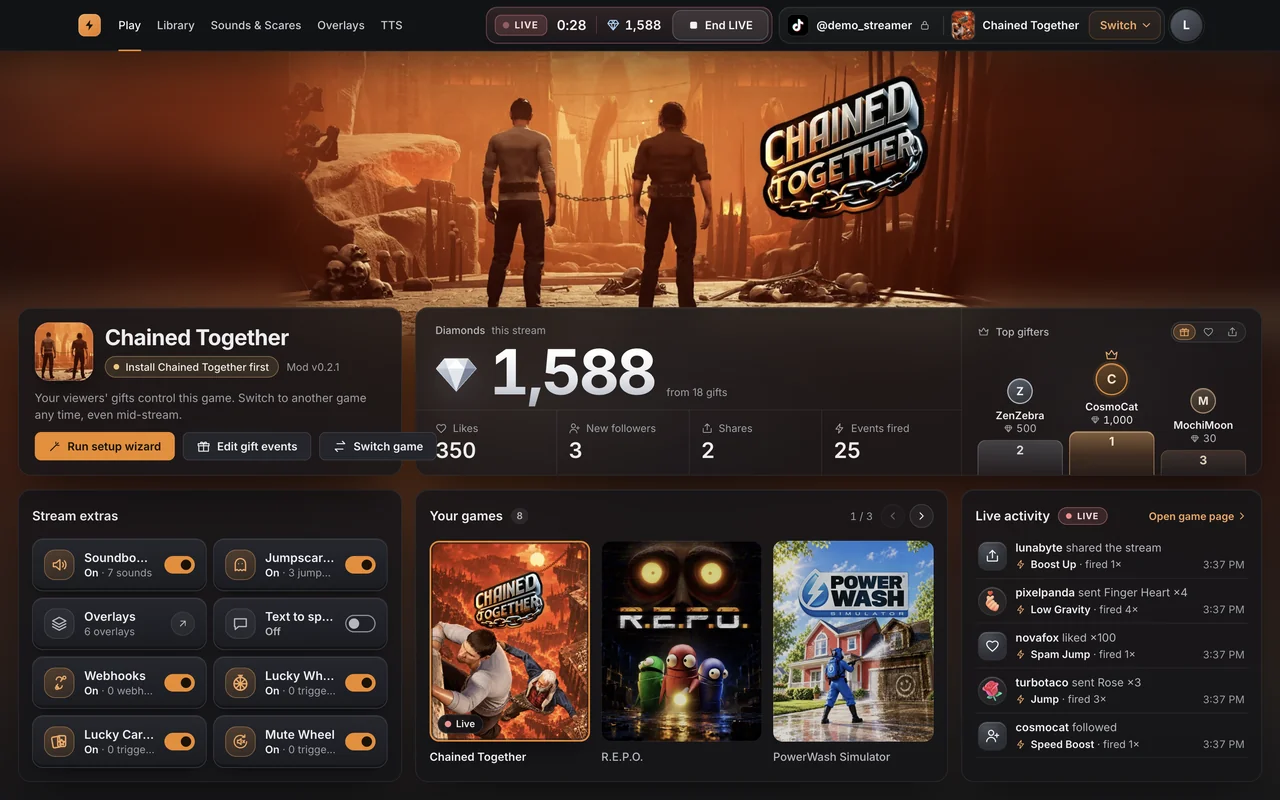
If your game shows nothing at all, check that it is the game picked for LIVE (its name is in the top bar) and that the row is switched On.
Viewer names in the game
When an event puts a viewer’s name in the game, Settings → Viewer names decides how it looks: Make fancy letters plain turns decorated Unicode letters into normal ones, and Remove emoji strips emoji. Both are on by default.
Beyond the game
Gift events belong to one game. Your other stream extras have their own triggers and work with any game:
- Sounds and jumpscares: Sounds and scares
- Chat read aloud: Text to speech
- On-stream widgets and the gift banner: OBS and LIVE Studio overlays
- The Lucky Wheel, Lucky Cards, the Mute Wheel and webhooks: Features
When lots of gifts with sounds arrive at once, Settings → When gifts pile up decides how the sounds share the room (Play them all, Limit how many, Big sounds win, Space them out). It only affects sounds; every game event still fires.