First run
This page takes you from a fresh install to a game that reacts to gifts. It takes about ten minutes, plus the time the mod download needs.
- 1. Tell the app your TikTok username
- 2. Add a game
- 3. Install the mod
- 4. Add your first gift events
- 5. Try it with the offline simulation
- 6. Go LIVE for real
- Next steps
1. Tell the app your TikTok username
The first time HypeMyStream starts, it opens on the Play page and asks What’s your TikTok username?
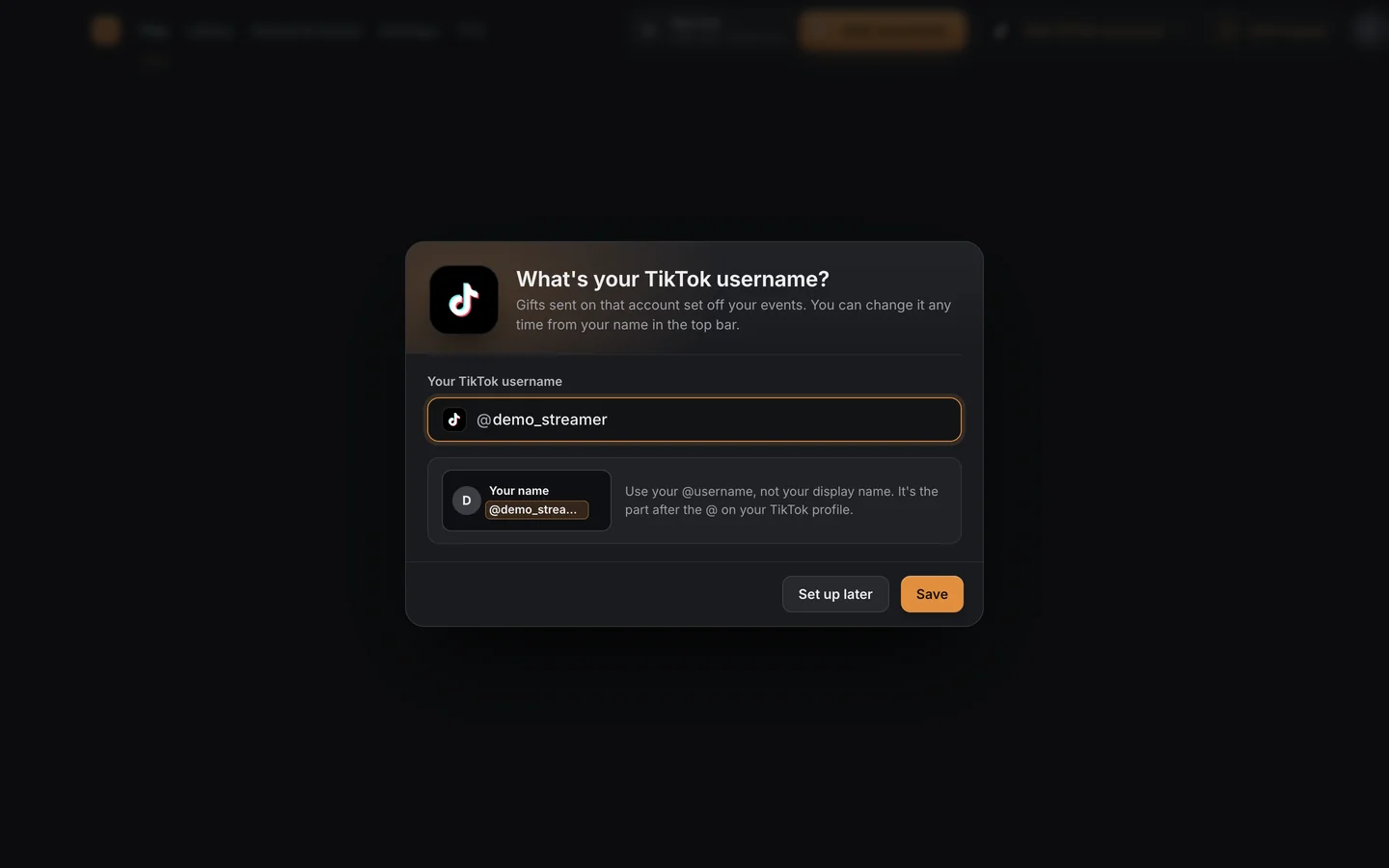
- In Your TikTok username, type your @username: the part after the @ on your TikTok profile, not your display
name. It is 2 to 24 letters, numbers,
_or.. - Click Save.
Gifts sent to that account set off your events. You can change it any time: click your name in the top bar (the
pencil next to @your_name), or use Change at the top of Settings. It is locked while you are LIVE.
If you click Set up later, add the username from the top bar before you go LIVE.
2. Add a game
With no game yet, the Play page asks Which game are you playing?
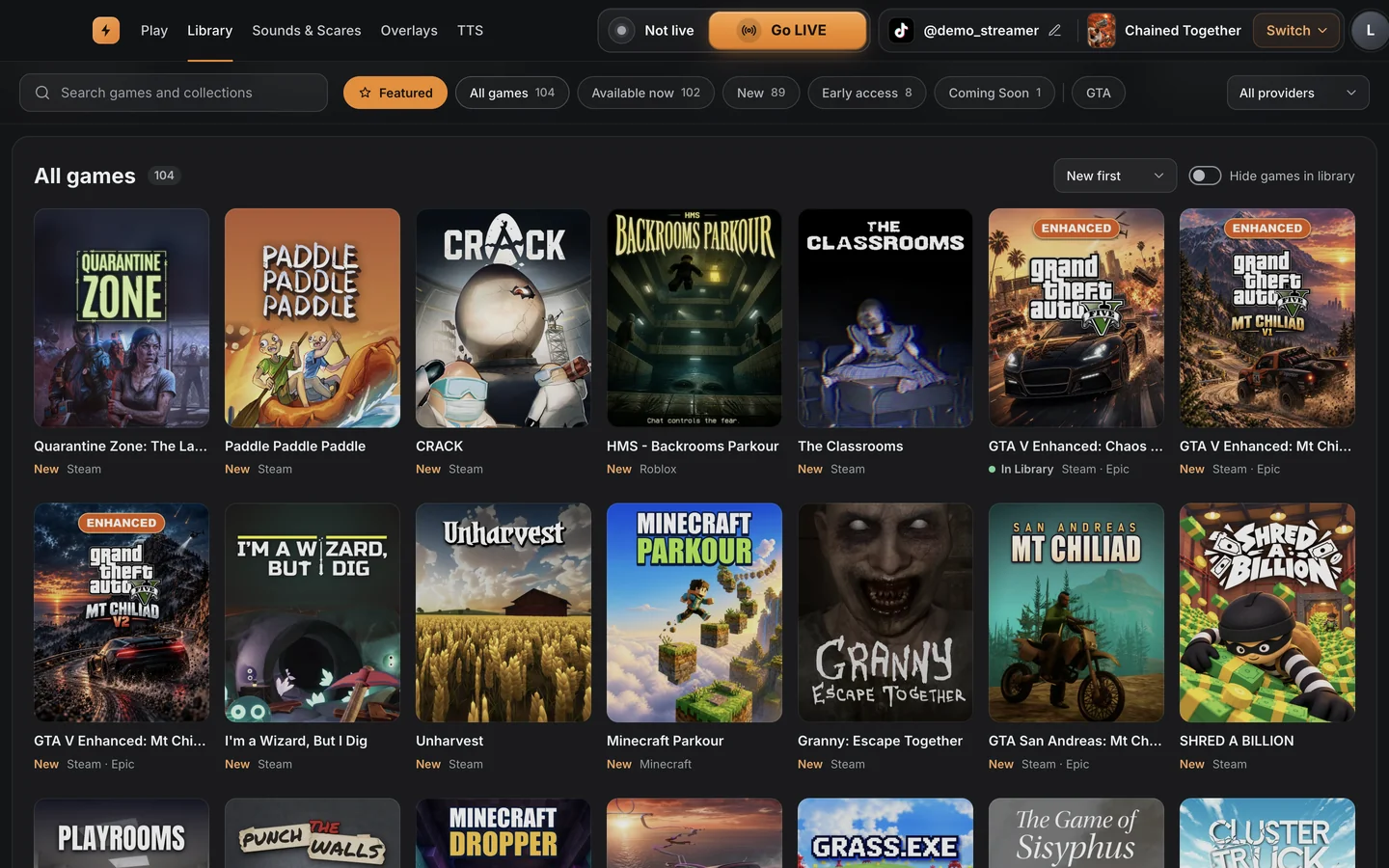
- Click Browse games (or the Library tab in the top bar).
- Find your game. Search with Search games and collections, or filter with the chips such as Available now and the All providers menu.
- Click Add on the game’s card, or Add to Library in its preview. The card now shows In Library.
- Click View on the card to open the game’s page.
You need your own copy of the game, installed on this PC. Some games in the library don’t work in this self-hosted release; see Games and mods.
3. Install the mod
Most games need a small mod that lets HypeMyStream talk to the game. The game’s page shows a Game setup checklist: Install the mod, Game connected and Picked for LIVE.
- Click Install & Set Up. The setup wizard opens.
- The wizard looks for your game. If it can’t find it, click Locate folder and pick the game’s install folder. If the game is installed more than once, pick the copy you launch.
- Some games need a mod loader first. Click Install mod loader when the wizard asks.
- Click Install. The wizard downloads the mod from GitHub, checks it and copies it into your game folder.
- Click Launch (or Launch and the game’s name) in the wizard or on the game’s page. When the game is running and the mod has connected, the checklist shows Game connected.
- If the checklist still shows Pick for LIVE, click Pick for LIVE on the game’s page. Gifts only go to the game that is picked for LIVE. You can switch games any time, even mid-stream, with Switch in the top bar.
Close the game before you install or update a mod. Mods are installed into the game’s own folder.
4. Add your first gift events
A gift event says “when viewers send this, do that in the game”. The table on the game’s page has the columns When viewers send, This happens in game, Sound, On and Test.
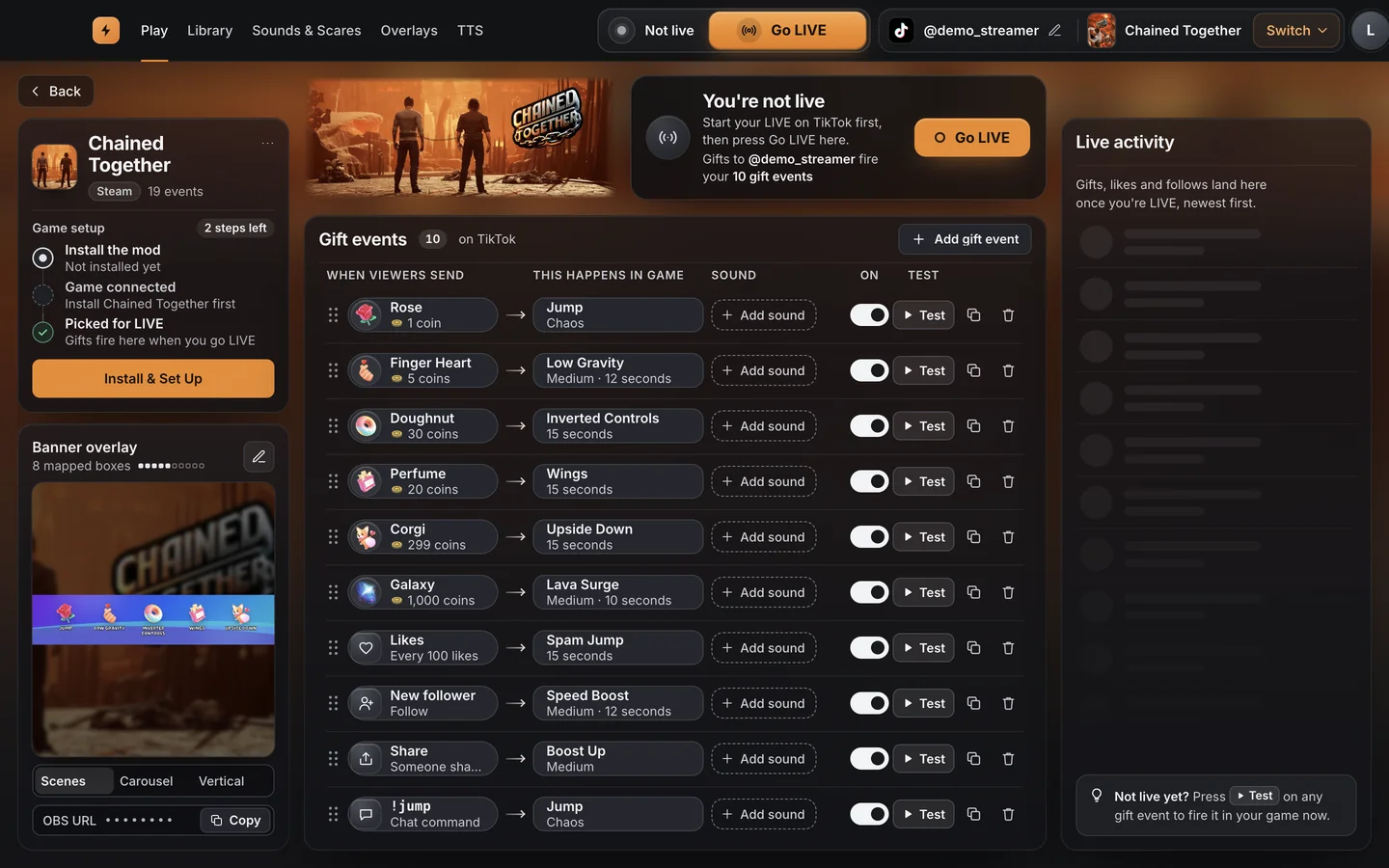
- Under Gift events, click Add gift event.
- Pick a gift, for example Rose. You can also pick likes, a new follower, a share or a chat command such as
!jump. - Pick what happens in the game, for example Jump.
- Optional: add a sound.
- Click Add gift event.
- Click Test on the new row. With the game running, the action happens in the game right away.
Repeat for a few gifts at different prices. Tips on picking gifts are in Commands, gifts and likes.
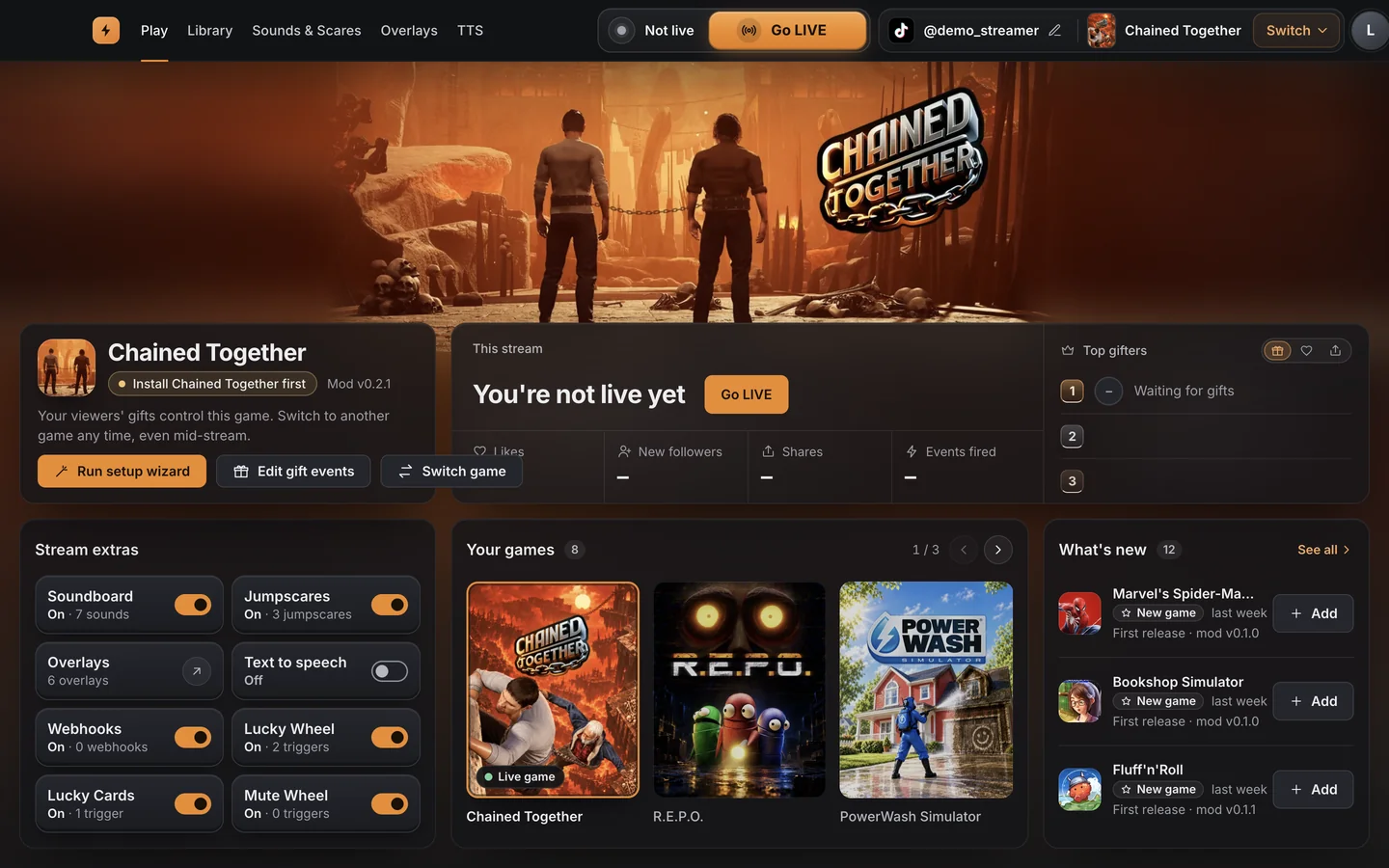
The Play page now shows your game card with Run setup wizard, Edit gift events and Switch game, and the Stream extras you can turn on.
5. Try it with the offline simulation
You can go LIVE inside the app without being live on TikTok. That is the safest way to try your setup.
-
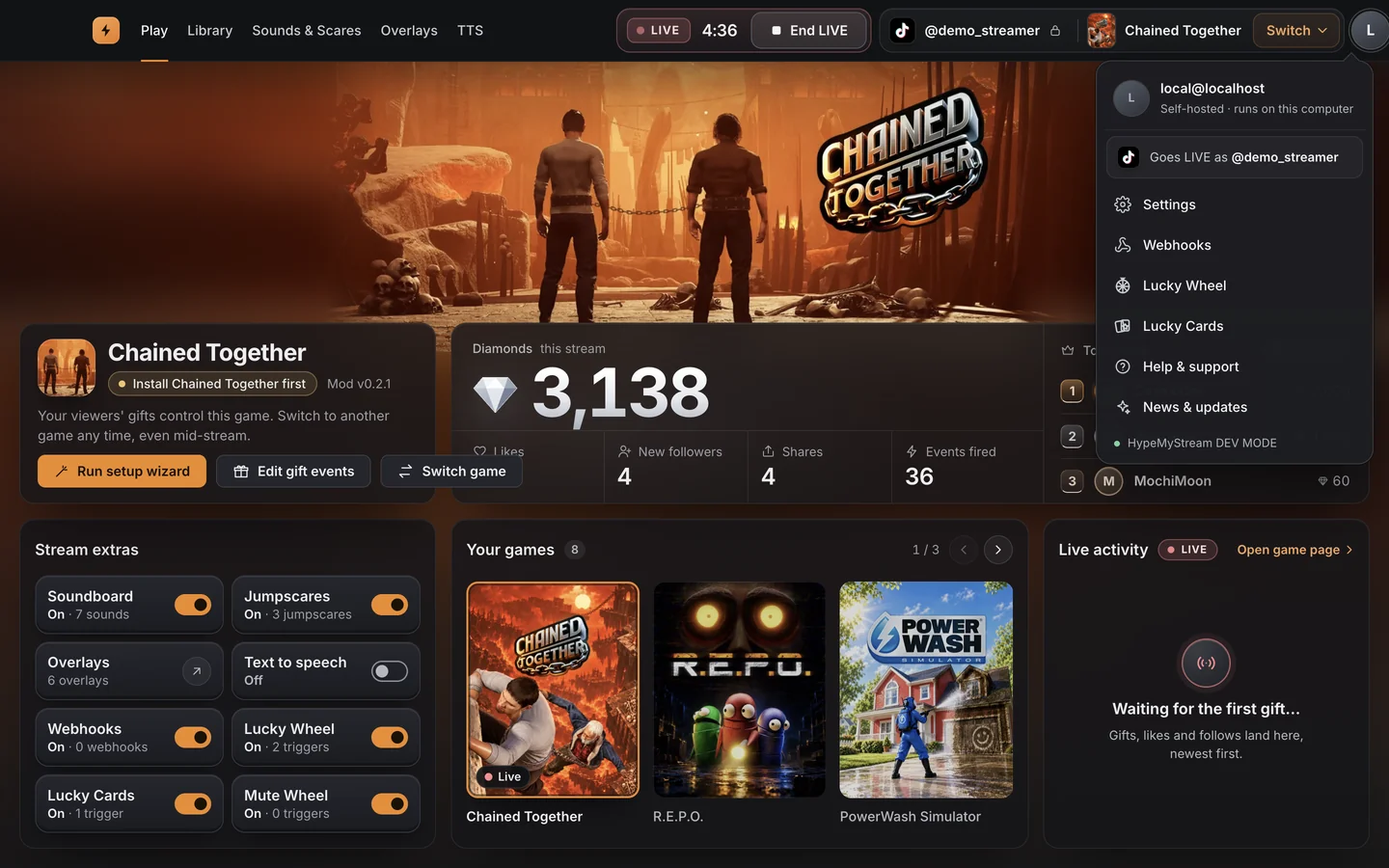
Click the round avatar at the top right (Account), then Settings.
-
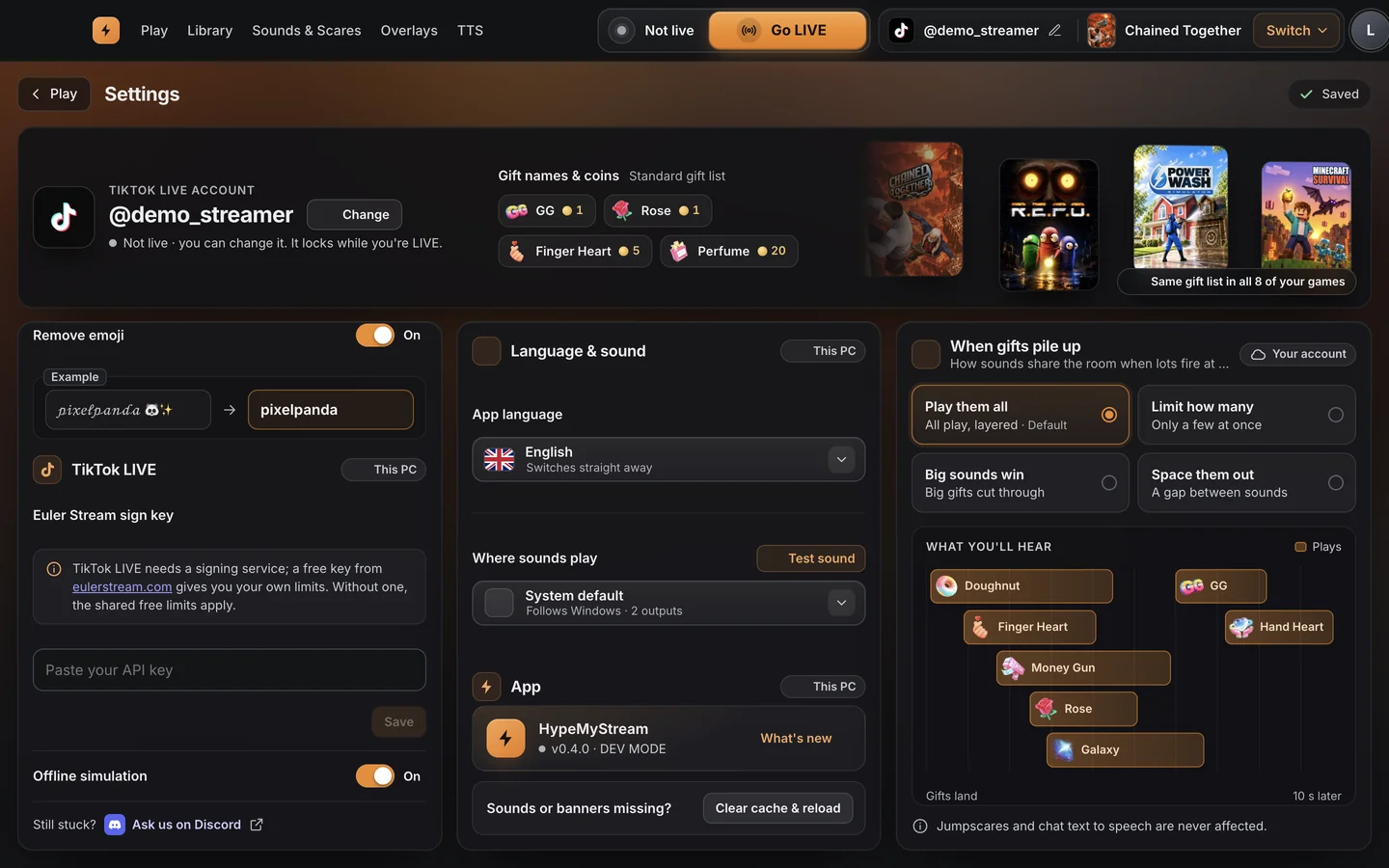
Scroll to TikTok LIVE and switch Offline simulation on.
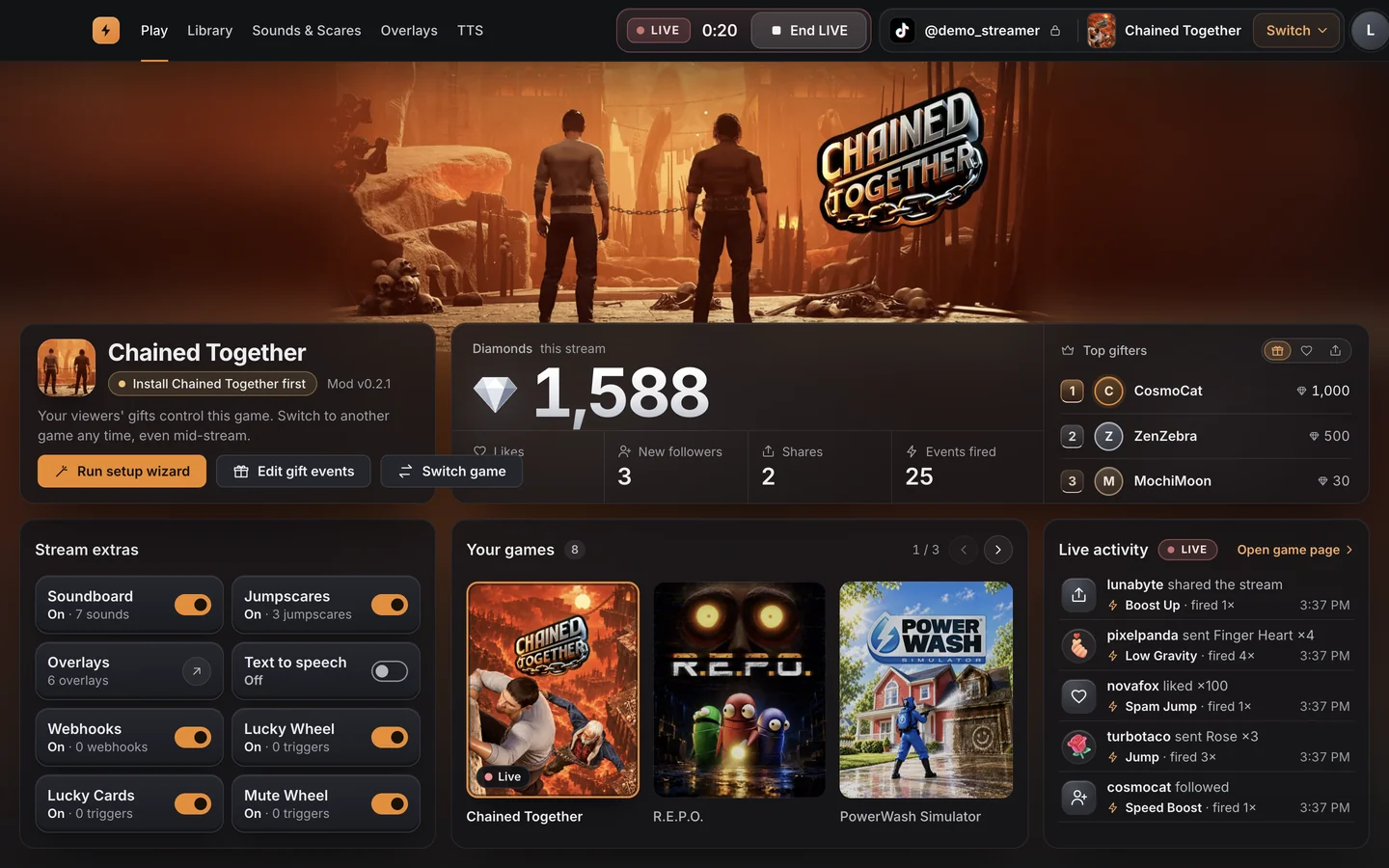
- Click Go LIVE in the top bar. The app connects at once, without TikTok, and the top bar shows LIVE and a timer.
- Press Test on your gift events. The game reacts right away. (Test fires the game event directly. It does not count as a viewer event, so the Play page totals stay at zero.)
- Click End LIVE when you are done. There is no confirmation.
Switch Offline simulation off again before a real stream. While it is on, Go LIVE never connects to TikTok.
6. Go LIVE for real
- Start your LIVE in the TikTok app or in TikTok LIVE Studio.
- In HypeMyStream, click Go LIVE in the top bar.
- When the top bar shows LIVE, gifts, likes, follows, shares and chat reach your game. The Play page shows your diamonds, likes, top gifters and a live activity feed.
If it doesn’t connect, the top bar says why. The most common ones:
| The app says | What to do |
|---|---|
| Couldn’t connect · “@your_name isn’t LIVE on TikTok right now…” | Start your LIVE in the TikTok app first, then press Try again. |
| Can’t find @… | The username is wrong. Press Fix username and enter the part after the @ on your profile. |
| Couldn’t connect | Often the shared sign server is busy. Add your own free Euler Stream sign key. |
A free sign key from Euler Stream makes the connection more reliable. How to get one, and what every error means: Go LIVE on TikTok.
Next steps
- Put overlays and the gift banner on stream: OBS and LIVE Studio overlays
- Add sounds and jumpscares: Sounds and scares
- Have chat read aloud: Text to speech
- Something not working? Troubleshooting