Lucky Wheel and Lucky Cards
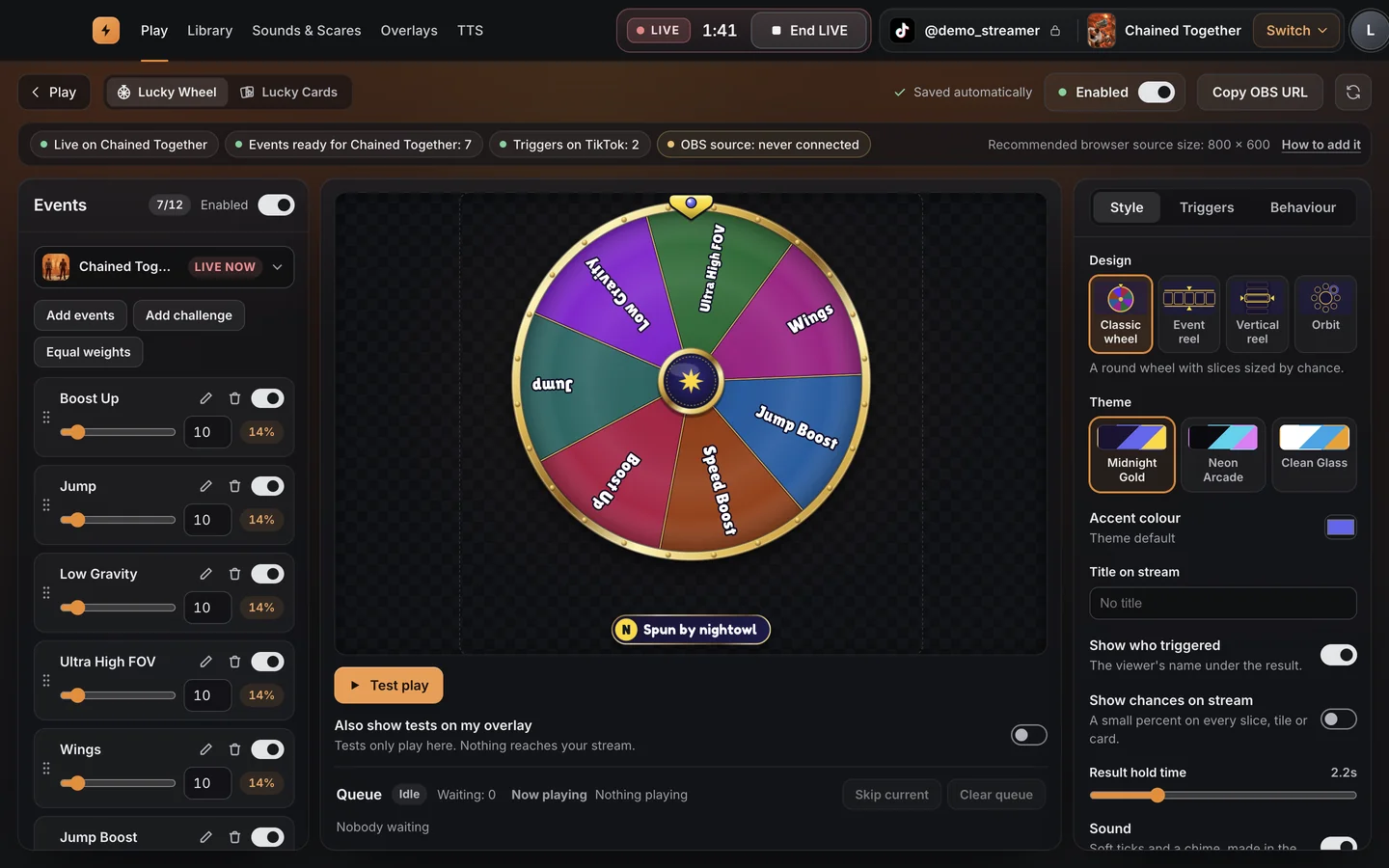
With the Lucky Wheel, viewers spin a wheel of your game’s events, and the event fires in the game when the wheel lands. Lucky Cards works the same way with cards: viewers draw a card, and the event fires when it is revealed. Both show on your stream as a browser source.
Lucky uses the events of the game you’re LIVE with, so pick a game and go LIVE with it.
Open it
- Click the round avatar at the top right and choose Lucky Wheel or Lucky Cards, or
- On the Play page, under Stream extras, click Lucky Wheel or Lucky Cards.
The page has two tabs at the top, Lucky Wheel and Lucky Cards. Each has its own events, triggers, style and link. Switch it on with the Enabled switch in the header. Changes are Saved automatically.
Set it up
- Pick the events. On the left, choose the game (the one marked Live now is the game you’re live with).
Click Quick start to fill the list with a ready-made set, or Add events to pick game events yourself.
Add challenge adds something you do on stream, for example “10 star jumps”.
- The Lucky Wheel holds up to 12 events, Lucky Cards up to 24.
- Each event has a weight from 0 to 100. Higher means likelier; 0 leaves it out. Equal weights gives every event the same chance.
- Add triggers. In the Triggers tab, click Add trigger and choose what starts a play: a gift (or any
gift worth at least some coins), likes, a new follower, a share, a subscribe or a chat command such as
!spin. You can set Gifts per play and a cooldown. - Pick a style. In the Style tab, choose a Design and a Theme (Midnight Gold, Neon Arcade or Clean Glass).
- Try it. Click Test play under the preview. Switch on Also show tests on my overlay to see the test in OBS too.
| Lucky Wheel designs | Lucky Cards designs |
|---|---|
| Classic wheel, Event reel, Vertical reel, Orbit | Spotlight, Top Card, Fan, Mystery tiles |
The Style tab also has Result hold time, Show who triggered and Show chances on stream. The Behaviour tab has Max queue, When the queue is full (Fire instantly or Drop), Gap between plays, Fire the event (When it lands or Immediately) and Fast mode.
Add it to your stream
- Click Copy OBS URL in the header.
- In OBS, under Sources, click + and add a Browser source. Paste the link into URL, set Width to 800 and Height to 600, then click OK. In TikTok LIVE Studio, add a source and choose Link, then paste the link.
- Keep it clear of your banner strip and alerts.
How to add it in the readiness row shows the same steps. The button next to Copy OBS URL makes a new link (Regenerate URL) if the old one leaks; the old one stops working.
The spin sounds (soft ticks and a chime) play in the browser source. Tick Control audio via OBS in the source’s properties to hear them on stream.
Readiness
Pills above the editor show whether Lucky can run:
- Live on <game>, or Not live.
- Events ready for <game>: N.
- Triggers on TikTok: N.
- OBS source: …
In the self-hosted version the OBS source pill always says “never connected”, even when OBS shows the widget. The app doesn’t track the browser source locally. Check OBS itself, or use Also show tests on my overlay and Test play.
The queue
Plays wait their turn in the Queue panel. Skip current stops the play on screen and Clear queue empties the queue. When many gifts arrive, extra gift plays can fire their event without the animation (see When the queue is full in Behaviour).
TikTok Shop sellers: don’t run Lucky during shoppable LIVEs.