Banner overlay
The banner is the strip on your stream that shows viewers which gift does what: Rose = Jump, Finger Heart = Low Gravity, and so on. It is built from your game’s gift events, so it changes when you change them.
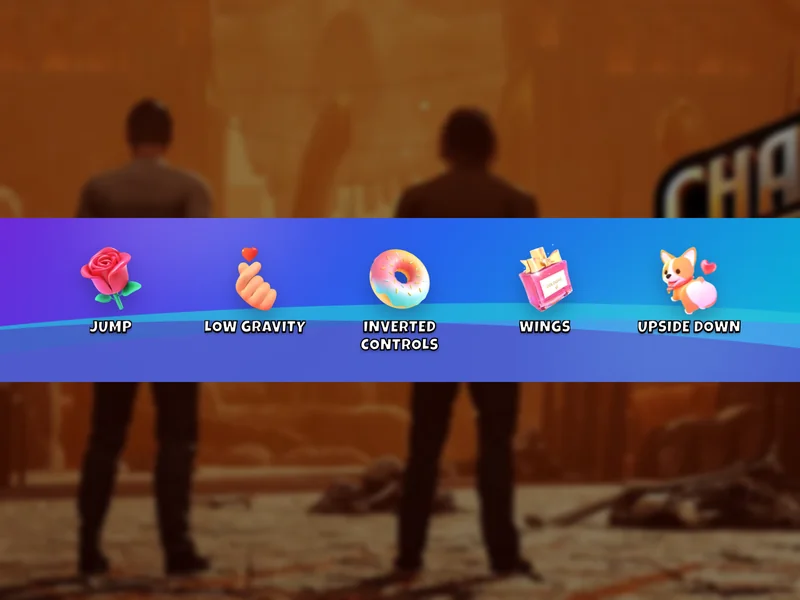
There is one banner link for all your games. The banner follows the game you’re live with: when you go LIVE or switch games, it shows that game’s cards.
Add the banner to your stream
- Open the game’s page (Play → Edit gift events).
- On the Banner overlay card, click Copy next to OBS URL. Copying also makes this game the banner’s game.
- In OBS, under Sources, click + and add a Browser source. Paste the link into URL, set Width to 800 and Height to 600, then click OK. In TikTok LIVE Studio, add a source, choose Link and paste the link.
- Drag the banner to where you want it.
Do this once. The same link works for every game you play.
You can also click Add to stream in the banner editor, which shows the same steps with a Copy link button.
With the Vertical layout and a taller banner height, the banner needs a custom size. The layout picker and Add to stream then show the size to use (“Needs a custom size: …”). Enter it as the source’s width and height; in LIVE Studio, turn on Custom resolution and set it there.
Edit the banner
- On the game’s page, click the pencil on the Banner overlay card (Edit Banner Overlay).
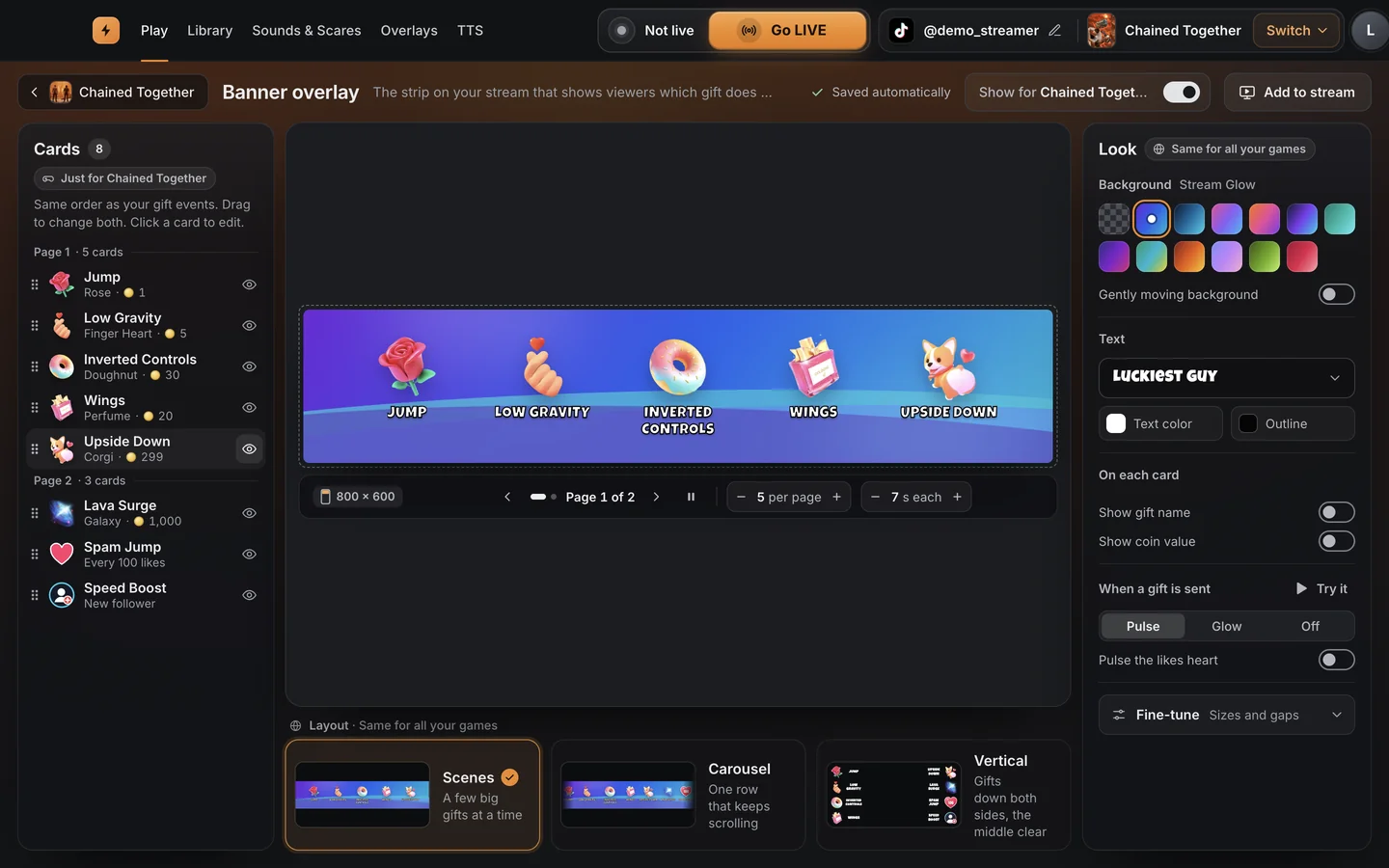
- The editor has three parts:
- Cards on the left: one card per gift event, in the same order as your gift events. Drag to reorder (this changes both). Click a card to edit it, or hide it from the banner. Hidden cards keep their place.
- The preview in the middle: what viewers see, page by page.
- Look on the right: background, text font, text color, outline, what each card shows (Show gift name, Show coin value), the effect When a gift is sent (Pulse, Glow or Off), Pulse the likes heart, and Fine-tune for sizes and gaps.
- Under Layout (the same for all your games), pick one:
- Scenes: a few big gifts at a time, page after page.
- Carousel: one row that keeps scrolling. Works best with short names.
- Vertical: gifts down both sides, the middle clear.
Changes are Saved automatically. The Show for <game> switch turns the banner off for one game; it then stays empty while you play that game.
Gift, follower and likes events show on the banner. Shares and chat commands don’t.
Want the cards to float over your game? Pick the Transparent background in Look.
If the link leaks
Anyone with the link can show your banner, so keep it off stream. In the banner editor, click Add to stream, then under Link leaked? click Make a new link…. Your old link stops working right away; paste the new one into OBS or LIVE Studio.
See OBS and LIVE Studio overlays for the other overlays and for help when a browser source stays empty.