Mute Wheel
“Viewers spin a wheel that mutes you, or saves you.” A gift or another viewer action spins the mute wheel, and the result (for example +15 s or +1:30) is added to a mute timer on your stream. Other triggers can spin the demute wheel, which takes time off, or clear the timer with a full unmute.
The Mute Wheel shows the timer on stream. It doesn’t mute your microphone: mute your own mic when it lands. The app also tells you with a message: “Mute now — …” and, when the time is up, “Mute timer finished — you can unmute”.
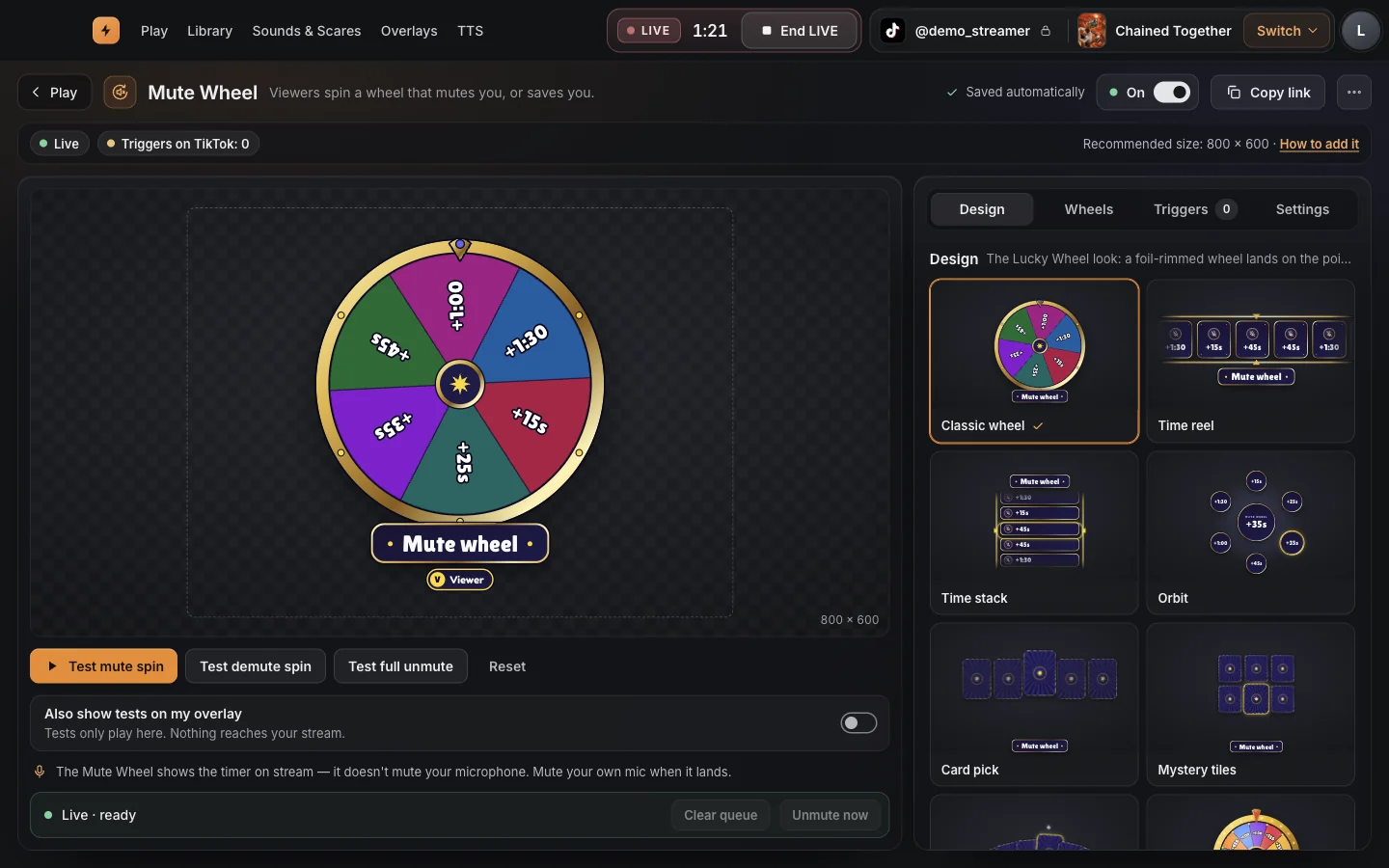
Open it
On the Play page, under Stream extras, click Mute Wheel. Switch it on with the On switch in the header. Changes are Saved automatically.
Set it up
- Wheels: edit the segments of the Mute wheel (time added) and the Demute wheel (time taken off). Each segment has a time and odds; higher numbers land more often.
- Triggers: click Add trigger and pick what your viewers do: a gift (or any gift worth at least some
coins), likes, a follow, a share or a chat command. For each trigger choose what it does:
- Mute spin: spins the mute wheel and adds the result to your timer.
- Demute spin: spins the demute wheel and takes the result off your timer.
- Full unmute: clears whatever is left of your timer. No spin.
Until you add a trigger, only the Test buttons spin the wheel.
- Settings: Spin length, Pause between spins, Most spins waiting, Longest mute (the timer never goes past this), When you’re already muted (Add time, Keep the longest or Restart the timer) and the spin sounds.
- Design: pick a design (Classic wheel, Time reel, Time stack, Orbit, Card pick, Mystery tiles, Card fan, Prime time, Sticker bomb, Mini pill), a theme and the words on stream.
Test it
Use Test mute spin, Test demute spin and Test full unmute under the preview. Reset stops the test and clears its timer. Switch on Also show tests on my overlay to see the tests in OBS too.
While you’re LIVE, spins from viewers are real: viewers see them and the mute timer runs. Unmute now clears the timer.
Add it to your stream
- Click Copy link in the header. Your link appears after the first copy.
- In OBS, under Sources, click + and add a Browser source. Paste the link into URL and set Width to 800 and Height to 600. Tick Control audio via OBS to hear the spin sounds on stream, then click OK.
- In TikTok LIVE Studio, add a source, choose Link and paste the link.
The ⋯ menu next to Copy link has How to add it and Regenerate link. A new link makes the old one stop working; paste the new one into OBS or LIVE Studio. Keep the link private: anyone with it can show your Mute Wheel.
The pill next to Live counts your active triggers, for example “Triggers on TikTok: 2”.